If you require support with the Propeller App, a member of the support team may request to view your app in order to get a clear picture of the issue, or to walk you through the resolution. This is a live process, meaning that the member of support can see your actions in real time. However, they will not be able to view anything outside of the Propeller App.
If a team member requests to view your app and you are happy to proceed with this process, select the menu option in the top left of your screen. Navigate to the Support option at the bottom of the list. Here, you will find the button for Remote Support.
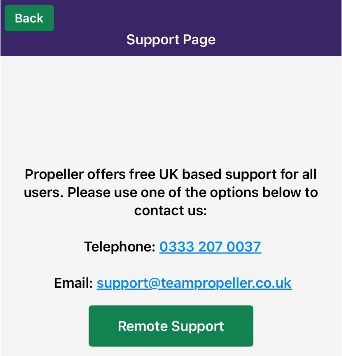
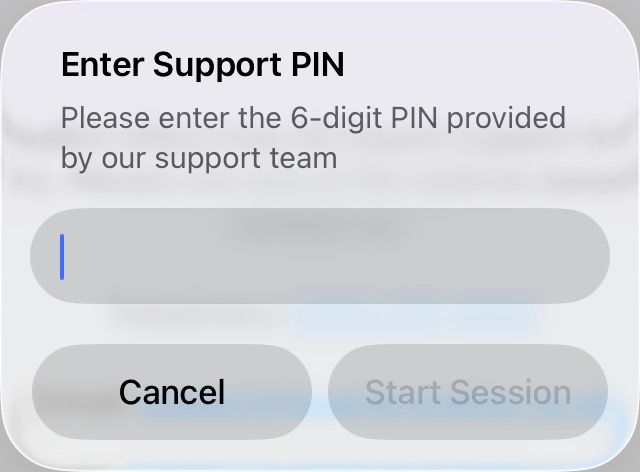
Once you select this you will be prompted to enter a 6-digit PIN. This will be provided by the member of support that is helping you. Enter this, and select Start Session.
The support member will then confirm if they can see your screen. From here, you can show them the issue you are encountering on the app and they will be able to walk you through the solution. They will not be able to make changes or control the app themselves and will only be able to view the app.
When the remote support has been connected, a Disconnect button will appear at the top right of your app. You will be able to disconnect from the session at any time. To do this, select the button then Yes when you are prompted to confirm your choice.

Was this article helpful?
That’s Great!
Thank you for your feedback
Sorry! We couldn't be helpful
Thank you for your feedback
Feedback sent
We appreciate your effort and will try to fix the article