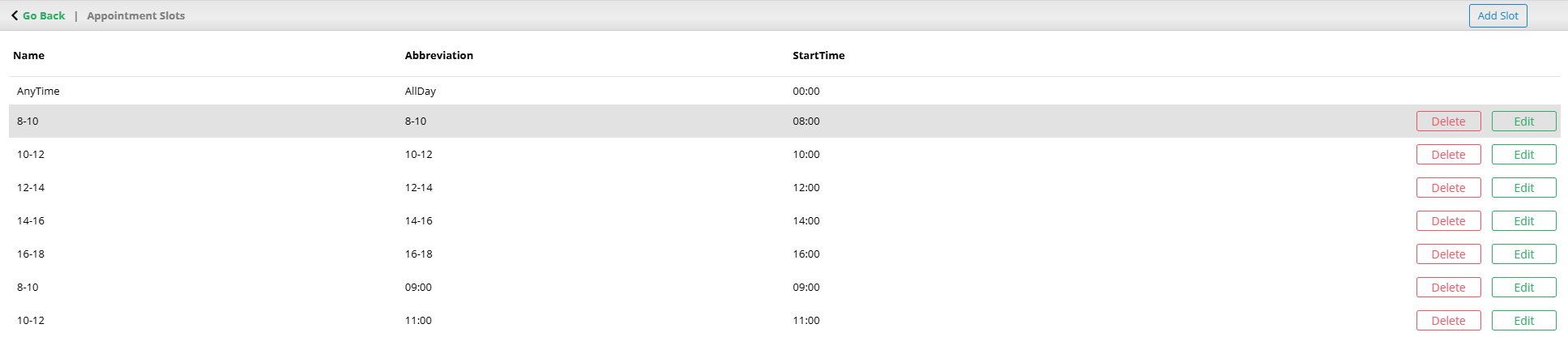
Appointment Slots allow you to set slots for your engineers to attend visits in. In order to do this, navigate to Settings > Company Settings >Visit Appointment Slots.
On this page you will be able to view existing slots.
_____________________________________________________________________________________________________________________________________
Create a Slot
To create a slot, select Add Slot in the top right of the page. From here, you can enter the slot name, an abbreviation and the start time.
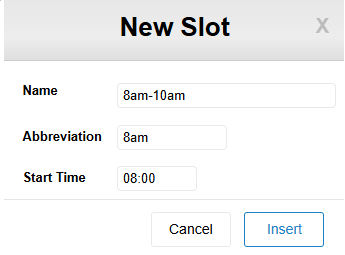
The slot name is used on the website, whereas the abbreviation is shown on the app to engineers.
In order to schedule jobs, slot times must be created.
Once the fields have been entered, select Insert to create the slot.
_____________________________________________________________________________________________________________________________________
Edit Slot
To edit the appointment slot, select the Edit button to the right of the slot. From here, you can change the details. Once the desired changes have been made, select Update.

Any visits assigned to the original time slot will then be rearranged to the updated time slot.
_____________________________________________________________________________________________________________________________________
Delete Slot
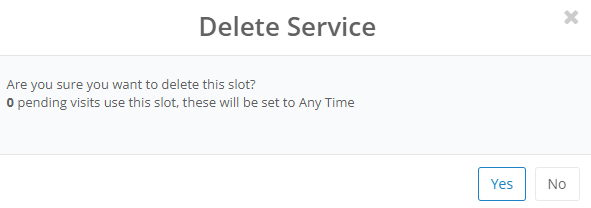
To delete a slot, select Delete to the right of the slot. From here, you will be prompted to confirm the deletion. It will also notify the number of visits that are assigned to that slot. If there are visits assigned and you proceed with deleting the slot, the visits will still be scheduled on the same day, however, they will be set to Any Time.
To confirm with the removal of the slot, select Yes.
_____________________________________________________________________________________________________________________________________
Appointment Slot Groups
Slot groups are a way to create multiple appointment slots over a period of time. To do this, navigate to Settings > Company Settings > Visit Appointment Slot Groups.
Templates
When navigating to this page the slot groups will be displayed on a Default Template. A template refers to appointment slots allocated to different landlords. The Default Template encompasses all landlords on the system.
You can change templates by selecting the drop down on the current template.
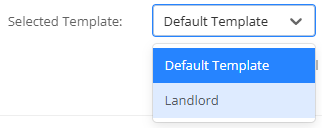
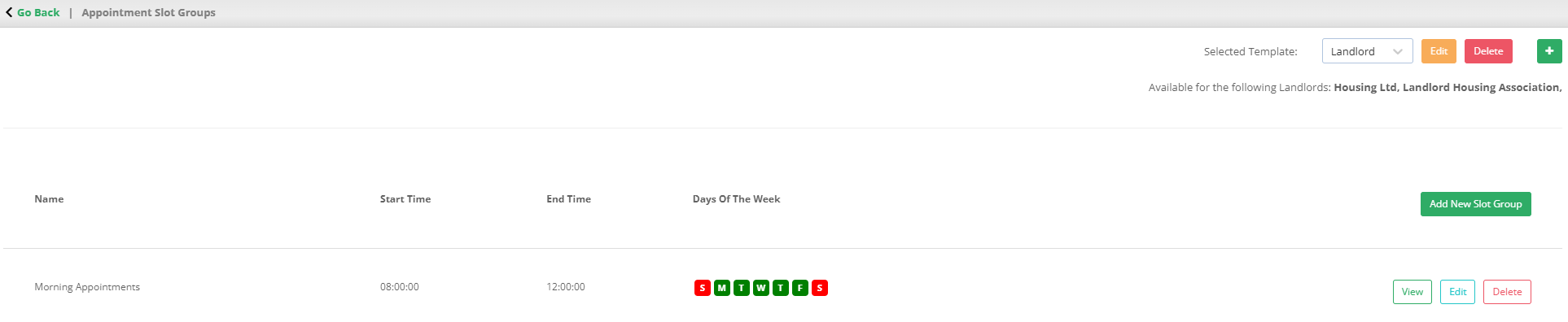
The page will also tell you which landlord(s) the template applies to.

_____________________________________________________________________________________________________________________________________
Create a Template
To create a template, select the green + symbol on the right of the page.

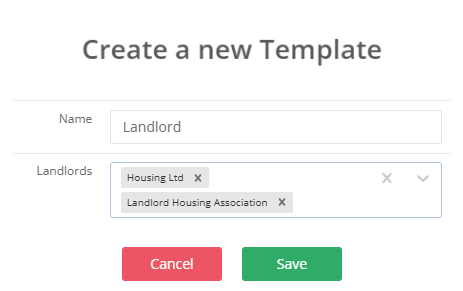
Here, you can name the template and select the landlords the template applies to. Multiple landlords can be selected per template.

Once you have entered the necessary details, click Save to create the new template.
_____________________________________________________________________________________________________________________________________
Edit Template
To edit a template, select it on the drop down menu and click the Edit button beside it. This then follows the same process as creating a template. Once you have made the desired changes, select Save.
_____________________________________________________________________________________________________________________________________
Delete Template
Similar to editing a template, select the template on the drop down and select the Delete button next to it. This will prompt you to confirm the deletion - to do so select Delete Template. Any visits currently assigned using this slot group will either switch to using the default template's appointment slot, or a custom template if the landlord of the property with the visit is assigned to one.
_____________________________________________________________________________________________________________________________________
Create a Slot Group
To create a slot group, select Add New Slot Group. Here, you will be prompted to enter the group's name, the start/end time of the slot, the slot duration and the days of the week it applies to. You can either select the time from the drop down, or enter one manually.
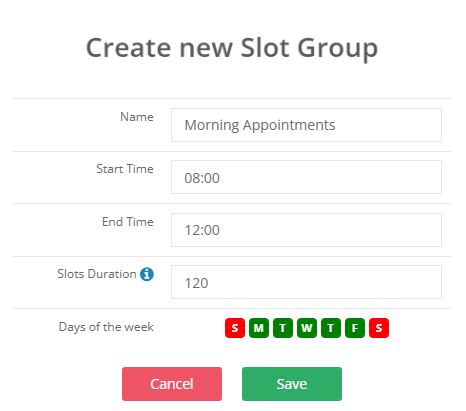
The slot duration defines the intervals that the slots will be created. For example, if the slot group had a start time of 8am, an end time of 12pm, and a slot duration of 2 hours, 2 slots would be created, one at 8am and one at 10am.
To create the slot group, select Save. This will now display the slot group.
_____________________________________________________________________________________________________________________________________
View & Add/Remove Slots
To view the slots included in the group, select the View button to the right of the group. This will display the individual slots.
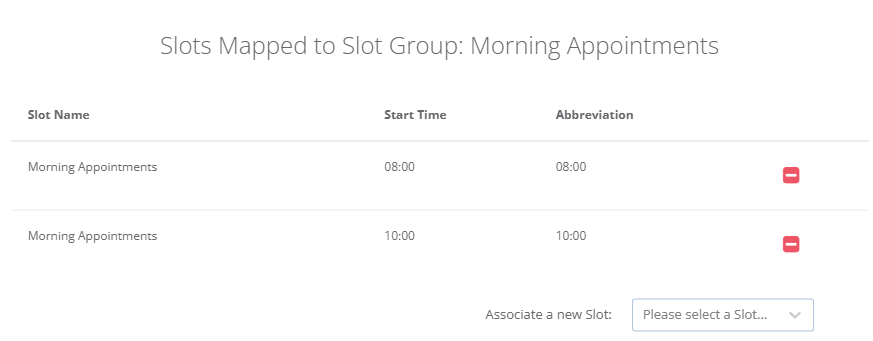
To add an additional slot to the group, select the drop down in the bottom right. This will display all the existing appointment slots in the system. Select one and click Add to add the new slot to the group.

This will now be included in the group.
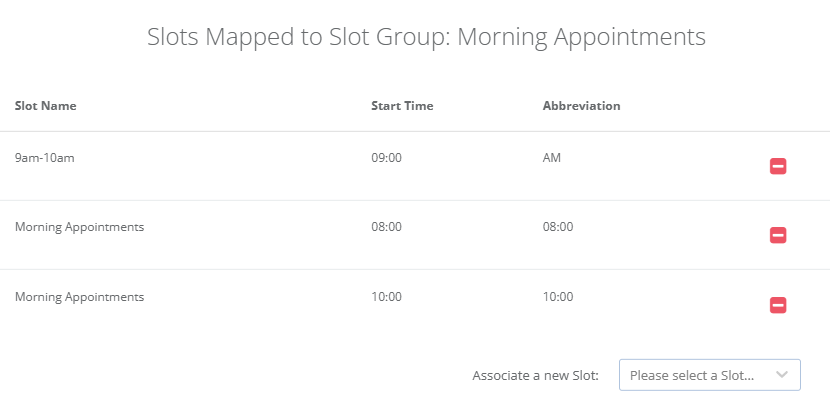
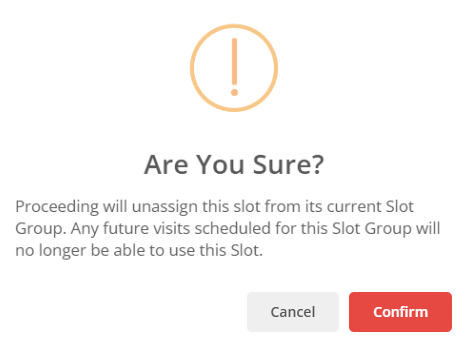
To remove a slot group, click the red - on the right of the slot group. Click Confirm to remove the slot.
_____________________________________________________________________________________________________________________________________
Edit Slot
To edit the group details, select the Edit button on the right. This follows the same process as creating the group. Slots will then be created/removed according to your changes. Select Save to apply the group updates.
_____________________________________________________________________________________________________________________________________
Delete Slot
To delete the group, select Delete. This will prompt you to confirm, to do this select Delete again. Doing this will only delete the group, the slots created within will still exist. These will need to be deleted manually via the Appointment Slots page (seen above).
Was this article helpful?
That’s Great!
Thank you for your feedback
Sorry! We couldn't be helpful
Thank you for your feedback
Feedback sent
We appreciate your effort and will try to fix the article