Action statuses allow you to create custom statuses for actions/tasks that need to be carried out for a property or visit. This makes it easier to track their progress in a way which is catered to how the company/landlords function. Find out more about actions here.
_____________________________________________________________________________________________________________________________________
Create an Action Status
To create an action status, navigate to Settings > Company Settings > Action Statuses.
From here, enter the status details. You can assign a name, what the status applies to (e.g. properties, jobs, reports) and if the status is for a specific landlord/client.

Once the required details have been entered, select Add New.
_____________________________________________________________________________________________________________________________________
Edit Action Status
To edit an action status, select the Edit button next to it. Here you can edit the status following the same process as creating one. To save your changes, select Update.

_____________________________________________________________________________________________________________________________________
Delete Action Status
A status cannot be deleted if it is assigned to an action. If this is the case, simply navigate to the action hub, filter by the status to be deleted and bulk update the actions to a different status (how to do this can be found below).
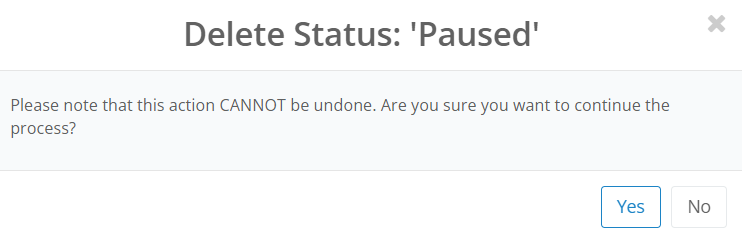
Once the status is not assigned to an action, select Delete. This will prompt you to confirm the deletion - select Yes.
_____________________________________________________________________________________________________________________________________
Assigning an Action Status
To assign a status, navigate to the Action Hub. The new status can be assigned to an existing action. To assign the status to a new action, simply create a new action and set the status to "Not Set". How to change an action status can be found below.
The status can be assigned to either a single job, or in bulk.
Assigning Action Status Individually
To assign the status to an individual action, select eye icon to the left of the action.

This will bring up the action details for you to edit. Select the Status drop down and select the custom status.
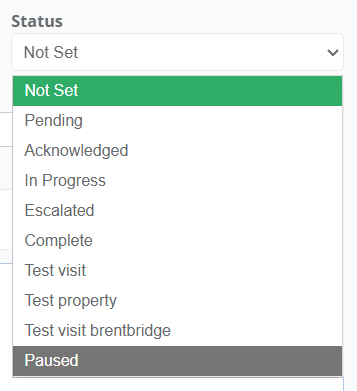
Once the status has been applied, select Save Changes.
Assigning Action Status in Bulk
To assign the status to multiple actions, either manually select the actions in the list or select the Select All button. Then choose Bulk Update.
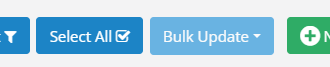
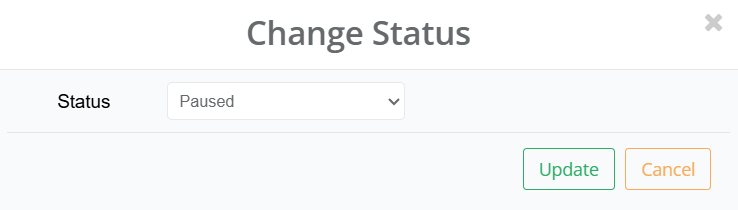
Doing this will provide a drop down, choose Change Status.
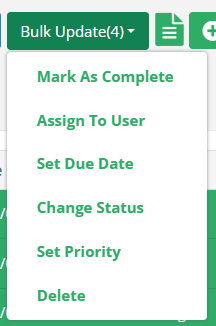
Select the drop down and the status you would like to assign to the chosen jobs. Select Update to save these changes.
Was this article helpful?
That’s Great!
Thank you for your feedback
Sorry! We couldn't be helpful
Thank you for your feedback
Feedback sent
We appreciate your effort and will try to fix the article