Service Dashboards have unique widgets to provide further details on your company's services. Each dashboard includes the following widgets:
- Job Summary
- Key Statistics
- No Access Reasons
- Property Overview
- Customer Satisfaction
- Attention Pending
- Engineer Performance
All of these widgets can be filtered by a specific date range, landlord or tag at the top of the dashboard.

_____________________________________________________________________________________________________________________________________
Job Summary
Job summary details the number of visits your company has carried out over a period of time.
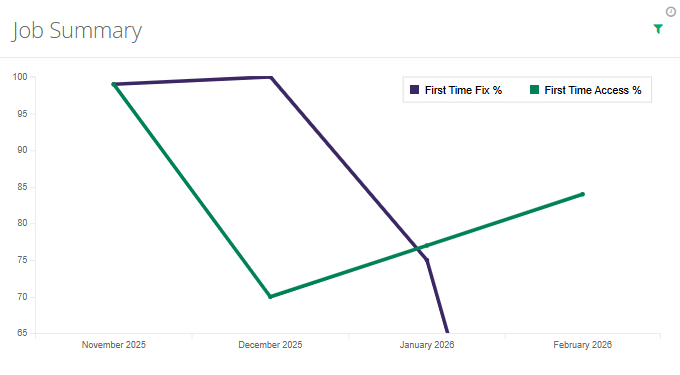
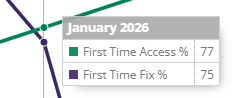
There are two lines on the chart - one that counts the number of first time fixes, and another that counts the number of first time access. You can hover over certain points of the chart to get the specific number of jobs that fall into these categories.
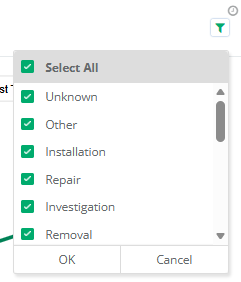
Additionally, you can also filter these visits by visit types with the green filter button to the top right.
_____________________________________________________________________________________________________________________________________
Key Statistics
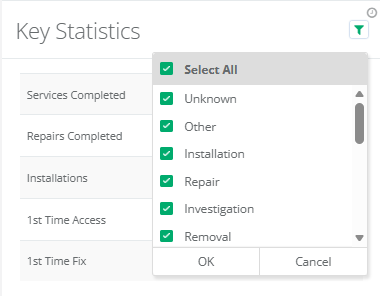
The Key Statistics section will give a total of all the visits types which have been completed in the given date range. The first time access and fix rates are also noted at the bottom.
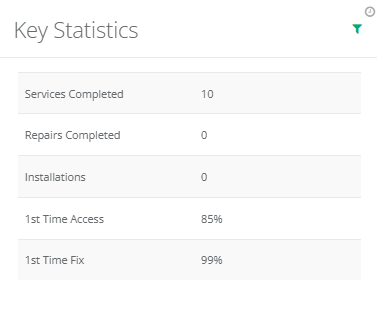
To change the visit types that are shown in this table, click on the green filter button in the top right corner to view the types being shown. You can then check and uncheck the boxes next to them to include/exclude visit types.
_____________________________________________________________________________________________________________________________________
No Access Reasons
This section shows a count of all the reasons visits have been missed by engineers for the dates which have been entered in the filter.
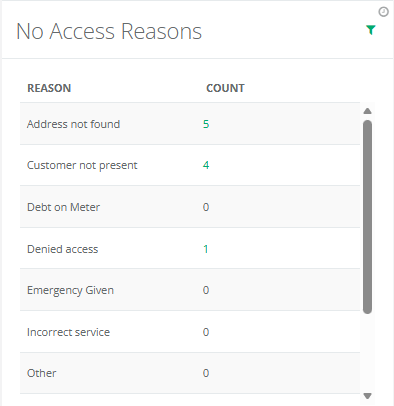
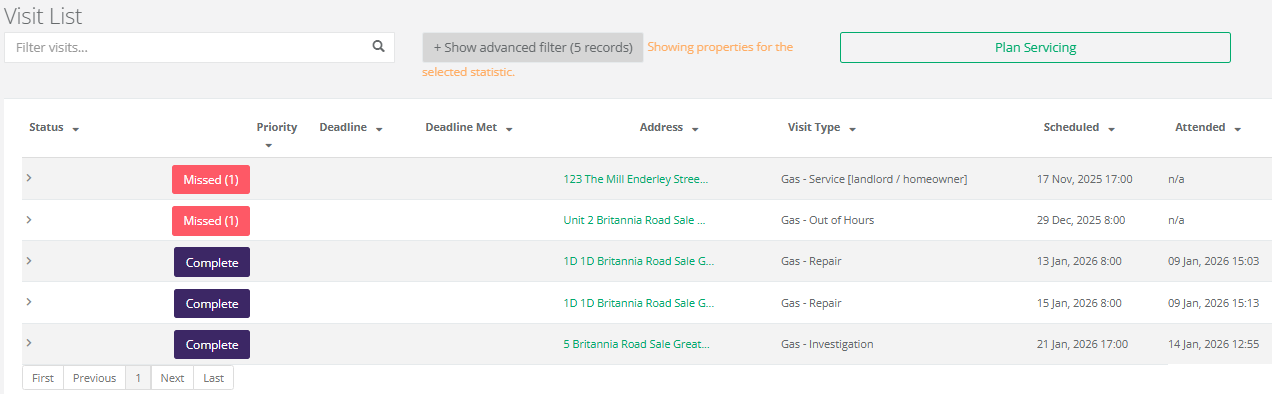
Clicking on the total next to the reason will open a new tab and direct you to a list of the visits which have a missed visit marked against it. Clicking on these visits will allow you to view the visit information.
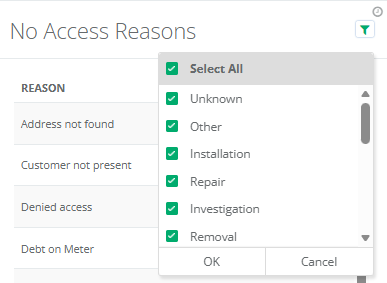
Clicking on the green filter button in the top right of the section will allow you to filter down the visit types.
_____________________________________________________________________________________________________________________________________
Property Overview
This section shows an overview of your properties that are in or out of compliance.
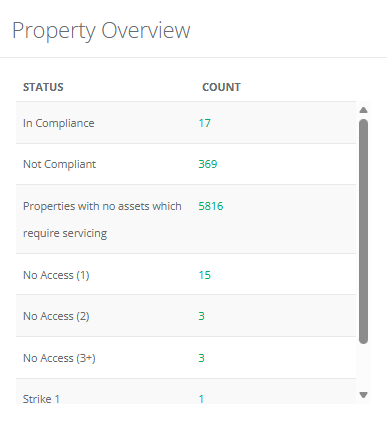
Clicking on the totals in green will take you to a list of these Properties in another tab.

The overview also shows the properties that have no access against them where the engineers have not been able to attend the property.
_____________________________________________________________________________________________________________________________________
Customer Satisfaction
After a visit has been completed, the occupier can rate their satisfaction with the work out of 5. This section will allow you to view the total visits for each rating for the filtered date and landlord.
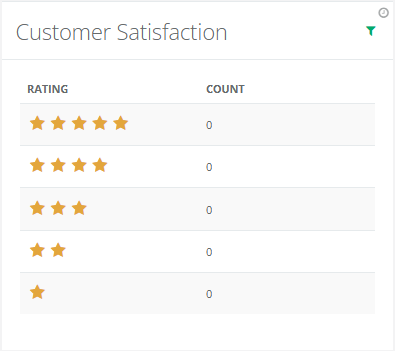
Clicking on the count will open a new tab and redirect you to a list of the visits relating to the satisfaction rating you have selected.

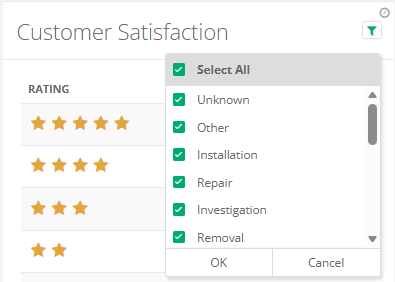
Clicking on the green filter button at the top right will allow you to select which the visit types the ratings are shown for.
_____________________________________________________________________________________________________________________________________
Attention Pending
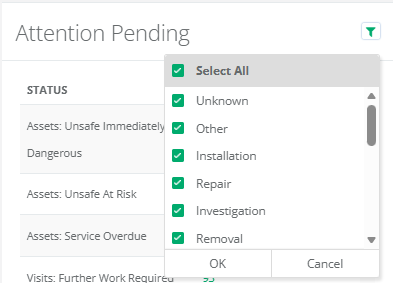
The attention pending section displays a list of visit statuses where action may need to be taken. Visits with priorities will appear in here as well as: visits which require further work, visits which have been missed, and visits which have been marks as unsafe by the engineers.
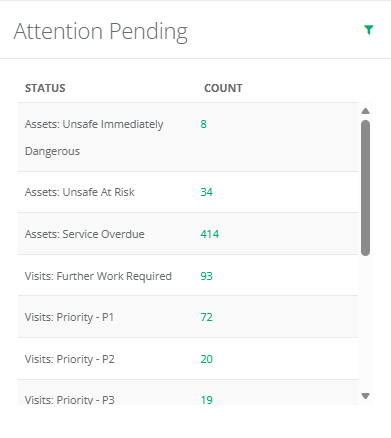
Clicking on the count of a status will open a new tab and redirect you to a list of the properties which have visits that may need attention.
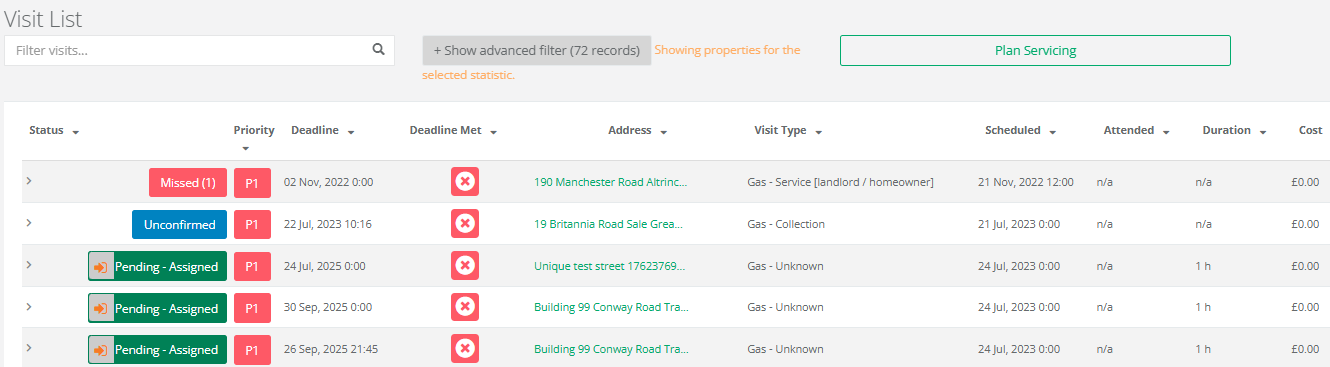
You can also filter the visit type with the green filter button.
_____________________________________________________________________________________________________________________________________
Engineer Performance
This section displays the performance data of all engineers for the filtered dates. From here you will be able to see an overview of all their visits in this time.
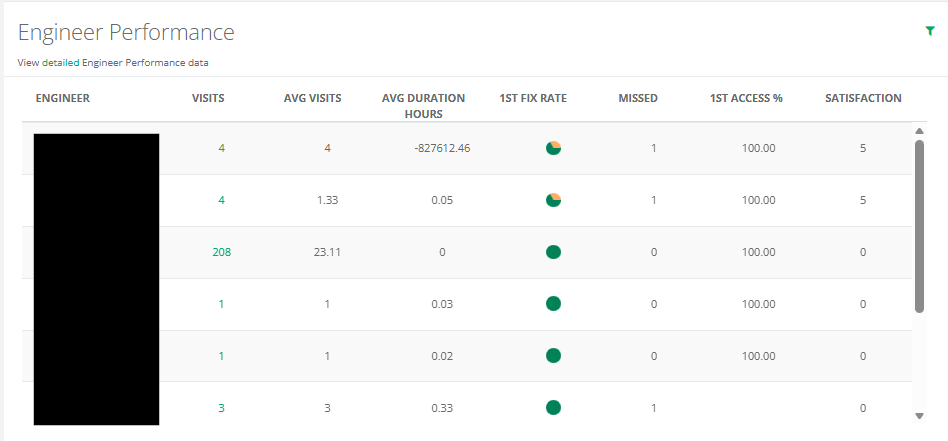
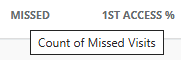
Hovering over the title of each column will give more information about what data the column displays.
You can select the number of visits in the Visits column to open a new tab that will display the visits under the dashboard's filters.

Hovering your cursor over the pie charts in the 1st Fix Rate column, it will display a key for what each section of the pie chart means, as well as the total percentage.

Clicking on the sections of the pie chart will open a new tab and direct you to the list of visits relating to that section.

Was this article helpful?
That’s Great!
Thank you for your feedback
Sorry! We couldn't be helpful
Thank you for your feedback
Feedback sent
We appreciate your effort and will try to fix the article