Actions are tasks that need to be carried out for either a property or visit. These can be managed in the Action Hub. Some actions can be repetitive, therefore Action Subjects can be created. To manage Action Subjects, navigate to Settings > Company Settings > Action Subjects.
_____________________________________________________________________________________________________________________________________
Create an Action Subject
First, name the Action Subject. The Landlord/Client and Service will be defaulted to any. If there are specific Landlords/Clients or Services you would like the Action Subject to apply to, simply select from the drop down menu.

Once the necessary details have been entered, select Create New. Alternatively, select Clear to remove the entered data.
_____________________________________________________________________________________________________________________________________
Edit Action Subject
To edit an Action Subject, select the Edit button to the right of the Action. From here, changes can be made in the same format as adding the Action Subject. Once the changes have been made, select Update. Click Cancel if you want to remove the changes made.

_____________________________________________________________________________________________________________________________________
Delete Action Subject
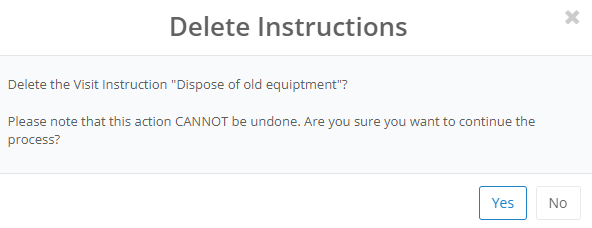
To delete an Action Subject, select Delete. This will prompt you to confirm your choice, to proceed select Yes.
_____________________________________________________________________________________________________________________________________
Apply an Action Subject
Applying an Action Subject is dependant on the parameters set for it. If an Action Subject does not have a specific Landlord or Service, the Action Subject can be applied via the Action Hub, a property or a visit. Conversely, if it has a specific Landlord then it can only be applied in a property with that landlord. If it has a service, it can only be applied in visits of that type of service.



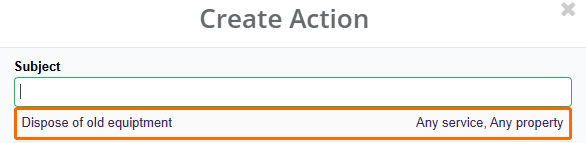
To apply an Action Subject, select New Action at the top of the page. Once the Subject box is selected the subject will be available.
Once the Action Subject is selected, extra details can be entered as well as if/who the task is allocated to (this can either be individuals or groups), the priority level, status and deadline. Any associated files can also be added (though it is recommended to use this feature to upload proof of task completion).
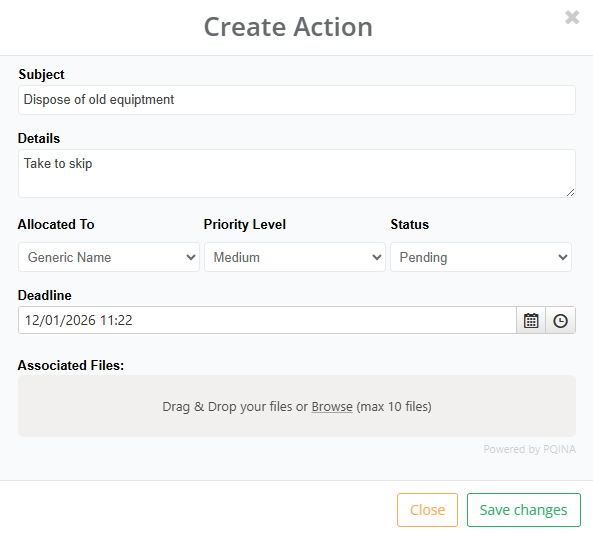
Select Save Changes to add the task.
Was this article helpful?
That’s Great!
Thank you for your feedback
Sorry! We couldn't be helpful
Thank you for your feedback
Feedback sent
We appreciate your effort and will try to fix the article