There are multiple ways to find properties on your system. The first can be done via the View Properties page (found by selecting Properties > View Properties in the side menu) or using the Address Lookup when creating a Property/Job/Visit.
This page will also detail the total number of properties on your Propeller system.

_____________________________________________________________________________________________________________________________________
View Properties
You can view all your companies' properties on the View Properties page. There are key two ways to search through these properties: first with the Property Search bar, second with the Filter/Sort button.
Property Search
This is a free text search bar. Here you can search for the property by address, postcode, occupier, property ID or UPRN.

Filter/Sort
The Filter/Sort button can be found next to the Property Search bar. This feature also includes a free text search bar. Additionally, you can search for a list of properties under the following filers:
- Created Date
- Modified Date
- Property Type
- Landlord/Client
- Contracts
- Tags
You can also choose what data field to order the list by (e.g. postcode, first name, surname, address), and whether you want it in descending or ascending order.
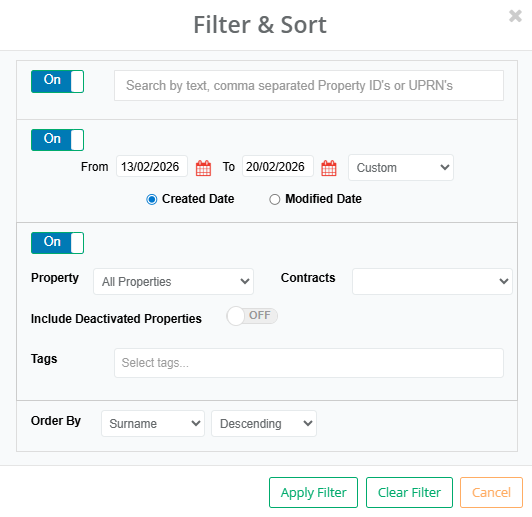
Once the desired filter/sort options have been entered, select Apply Filter to produce the newly ordered property list.
_____________________________________________________________________________________________________________________________________
Address Lookup
You will be prompted with the Address Lookup when creating a Property/Job/Visit. The address can either be found with the Search Postcode option, or to Enter Manually.
Search Postcode
Enter the postcode of the property you are looking for and press enter. This will bring up a list of all the addresses relating to the postcode entered.
Addresses that a greyed out with a ✓ are properties already on your Propeller. Addresses that is blue with a * are properties that are not on your Propeller.
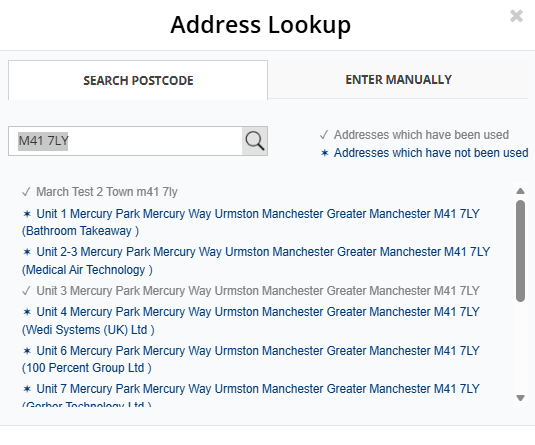
If an address does not appear in the search, it may be a new address and not currently be listed on any postcode searches. You will need to enter the address manually.
If you are creating a property clicking on an existing address will take you to its property page. Clicking on a new address will take to the property details page.
Manual Address Entry
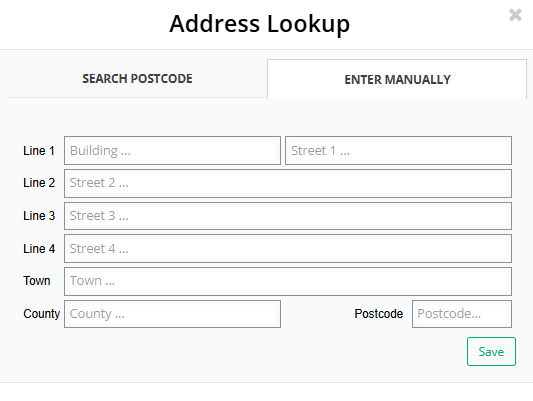
If the required address does not appear in the Postcode Search you can enter the details. To do this select Enter Manually.
Fill in the fields for the address (Street 1, Town and Postcode are all required fields).
Click Save and you will be taken to the property details page
Learn more about adding properties here.
Was this article helpful?
That’s Great!
Thank you for your feedback
Sorry! We couldn't be helpful
Thank you for your feedback
Feedback sent
We appreciate your effort and will try to fix the article