The Compliance Check Manager (CCM) is a tool that allows you to make changes to your properties' Compliance Checks. To access the CCM, go to Properties > View Properties in the side menu.
You will then be able to filter to the visits that require an update. To do this, use either the Search Box (can be used to search properties by text) or select the Filter/Sort button at the top of the page. These methods will filter the properties by the following factors:
- Property ID
- Property UPRN
- Create Date
- Modified Date
- Property Type
- Landlord
- Contract
- Tags
Select the Search Icon if using the Search Box, or select Apply Filter in the Filter/Sort button to generate the list of the required properties.

With the filtered list you can now select the properties you would like to change. You can do this by selecting each property individually by clicking on the row, or clicking the Select All button at the top.

Once the properties have been selected, click Bulk Update, then Update Compliance Checks in the drop down provided.
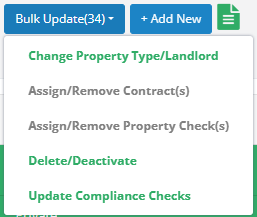
This will open the CCM.
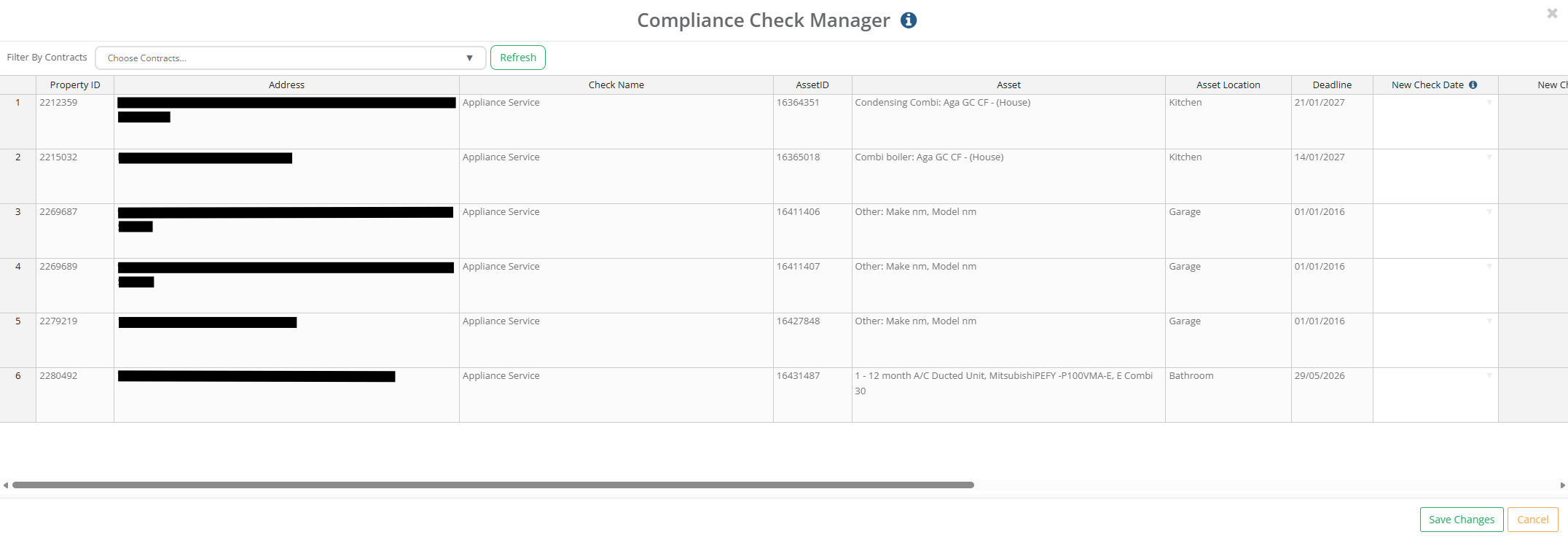
Here you can edit the New Check Date and the New Check Status. You can filter by Contracts at the top of the page.

Select Save Changes once the required details have been entered. The properties will now follow the newly updated Service Dates.
Was this article helpful?
That’s Great!
Thank you for your feedback
Sorry! We couldn't be helpful
Thank you for your feedback
Feedback sent
We appreciate your effort and will try to fix the article