Client Access allows your clients to view visits, properties and documents on the system. This is useful as your clients can then track the state and progress of these aspects themselves, as well as create their own reports.
Users with client access cannot create or modify anything in the system as they have a "read only access". Additionally, Client Access can be catered to specific landlords, allowing users to only view the landlord data relevant to them.
____________________________________________________________________________________________________________________________________
Create a Client User
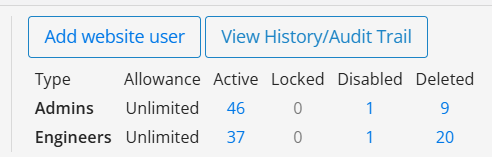
To create a client user account, first navigate to Settings > User Manager > Website Users. At the top right of the page, select Add Website User.
An account with client access requires the following details:
- First Name
- Surname
- Email Address
Enter these details to the corresponding fields. You will also need to provide a link for the user to create a password, for a website user it is recommended to do this via email.
As this account is for Client Access, select this as a user type below.
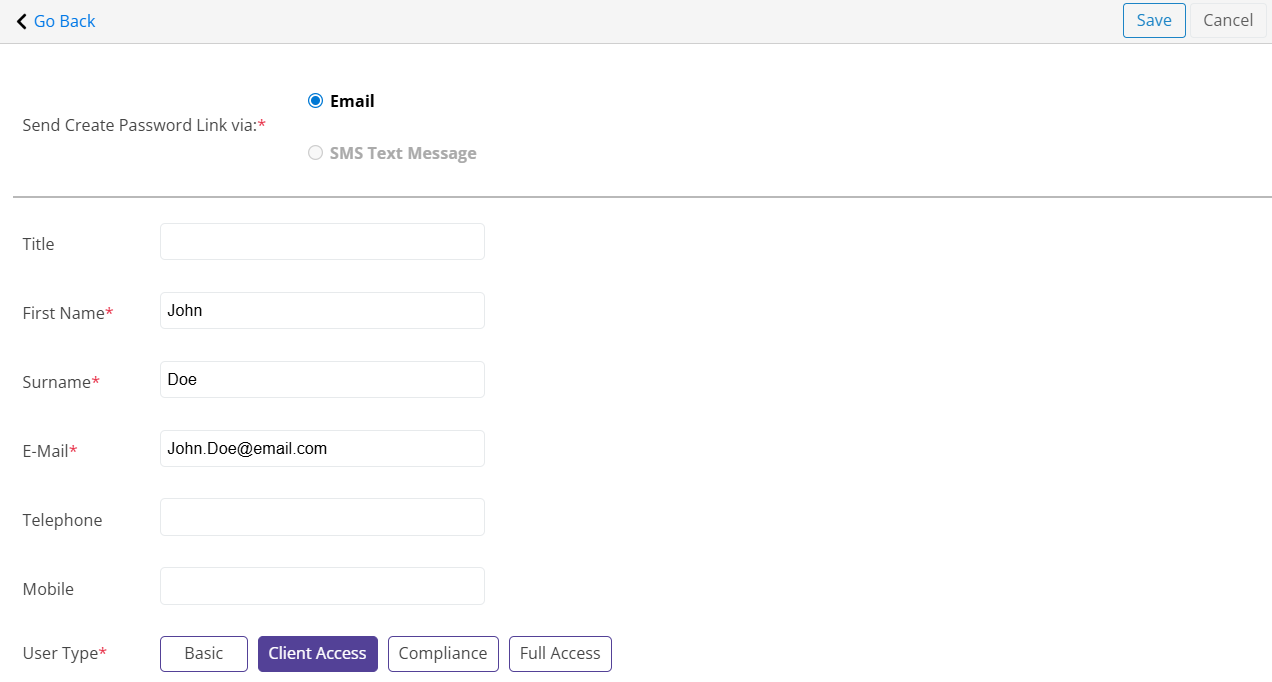
Once this has been completed, select Save. This will automatically send the link to the user to create their password.
____________________________________________________________________________________________________________________________________
Assign Client Access
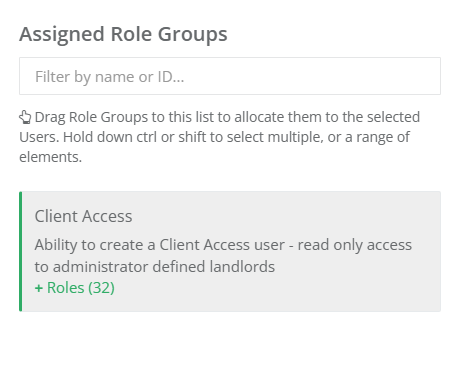
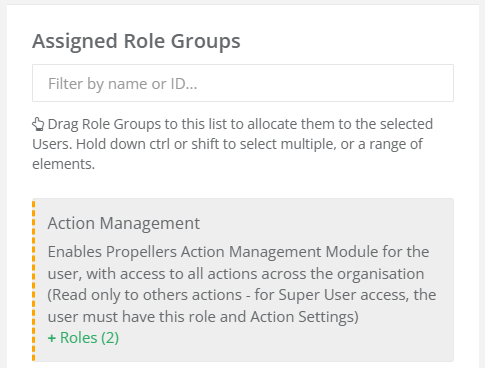
By defining the user type as Client Access this role should be assigned automatically. However, you can check this in the User Roles page. To do this, either select Setup User Permissions on the account, or navigate to Settings > User Manager > User Roles. On this page, select the new user and check that the Client Access role is the only role in their Assigned Role Groups. You will know if this is assigned as this will be the only role marked with a green line.
If there are other roles assigned, simply drag these from the Assigned Role Groups to the Available Role Groups. The same can be done in reverse if the Client Access role isn't assigned - simply search for this in the Available column, and drag it over to Assigned.
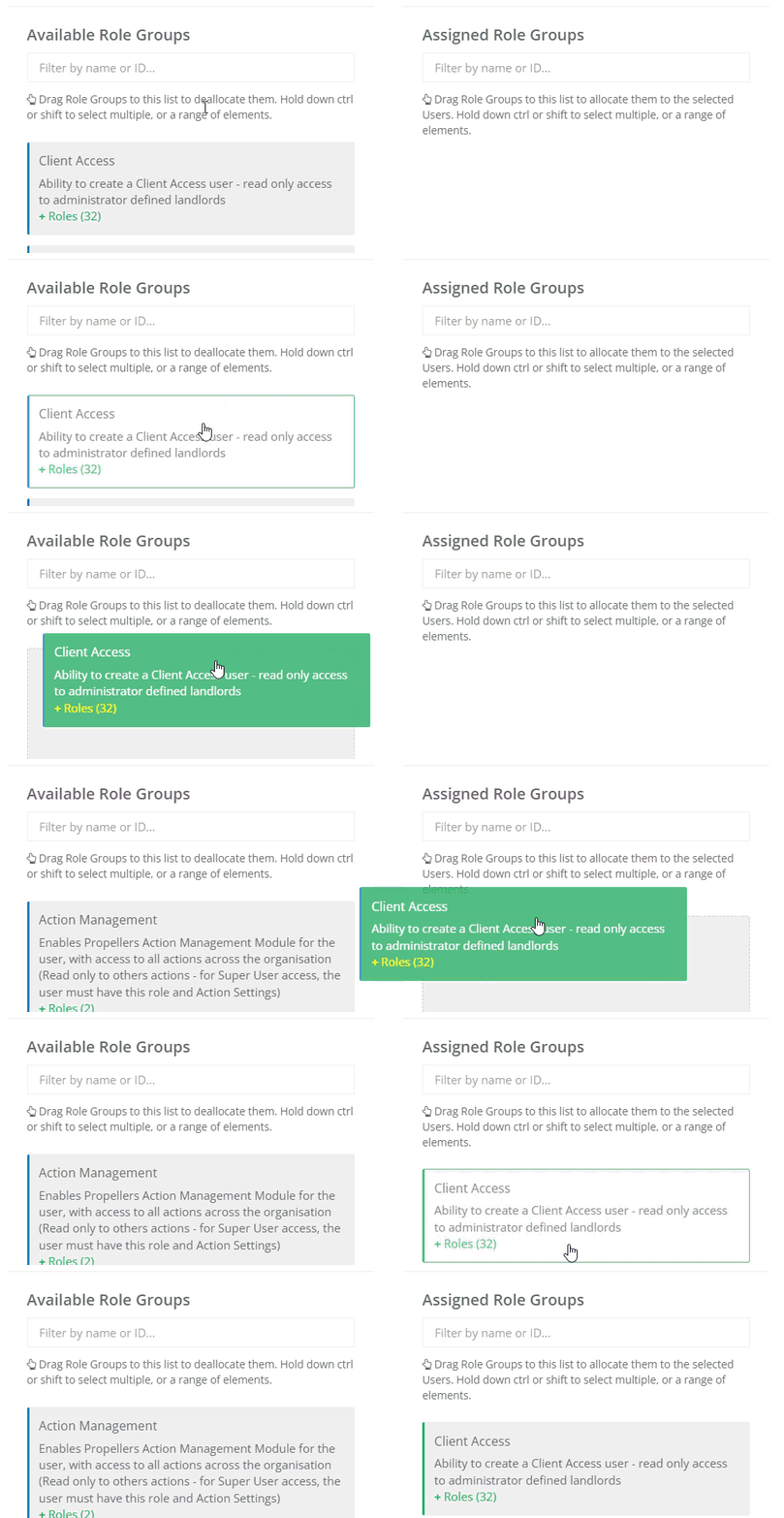
Please be aware that when viewing the user roles, if the new account has unwanted roles with an orange dashed line these are not actually assigned to the account and you may have other users selected. This line appears when the role is not assigned to all selected users. Make sure that the client accounts are the only ones selected in the user column, and then review the assigned roles.
____________________________________________________________________________________________________________________________________
Assign Client Access User to a Landlord/Client
A client must be assigned access to one or more Landlords/Clients to be able to see data specific to that selection. This can be done via Settings > User Manger > Configure Client Access.
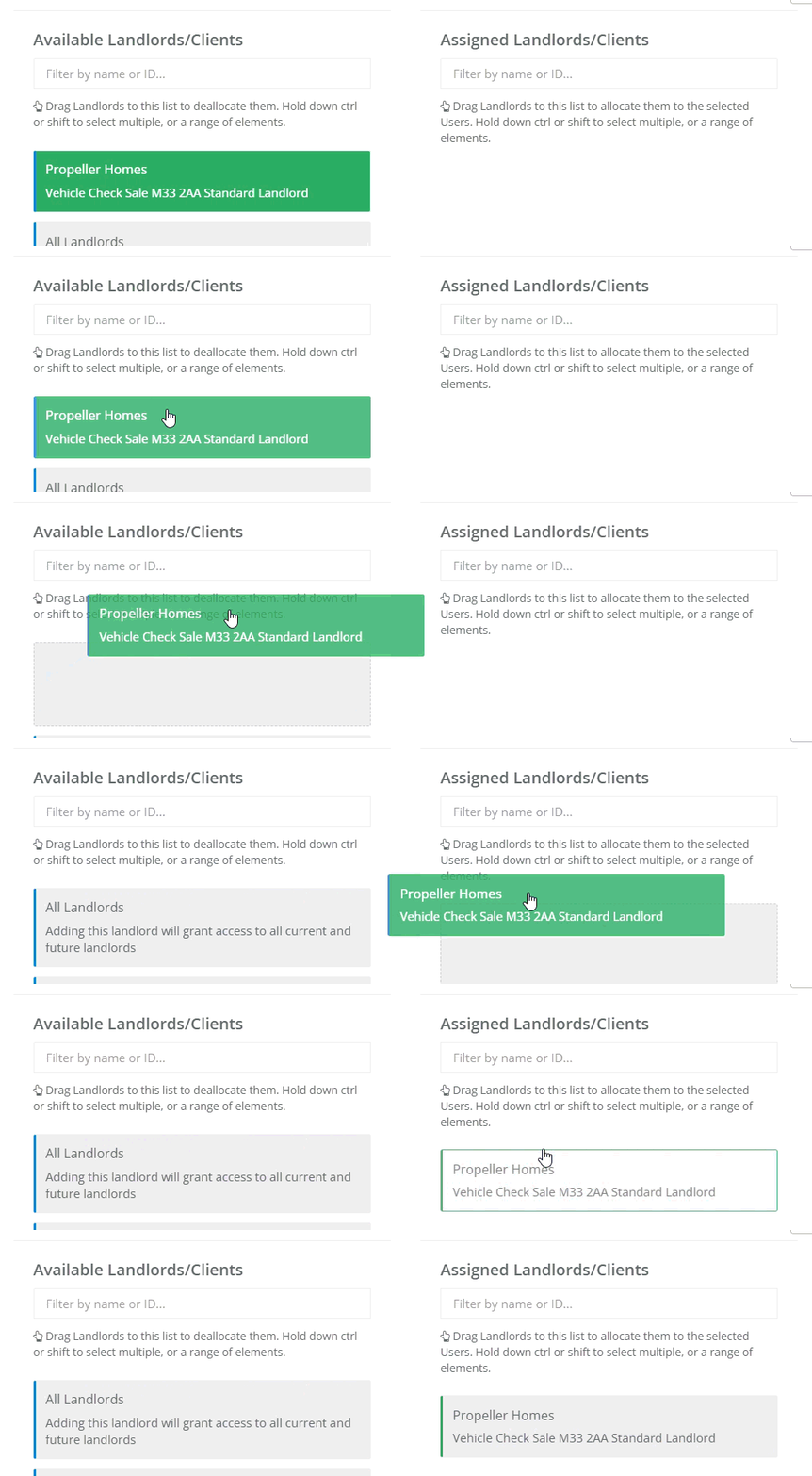
In a similar process to user roles, select the client you would like to assign to a landlord. From here, you can search and drag the landlord from the Available Landlords/Clients column and move it over to the Assigned Landlords/Clients. By default a new client account will not have any landlords assigned to it and will not have access to any data until they are assigned a landlord.
The client will now be on the system with client permissions. The landlords/clients can be changed at any time.
Was this article helpful?
That’s Great!
Thank you for your feedback
Sorry! We couldn't be helpful
Thank you for your feedback
Feedback sent
We appreciate your effort and will try to fix the article