You can send out letters to customers regarding visits to their properties. To do this, first navigate to the visit you would like to send the postal letter for.
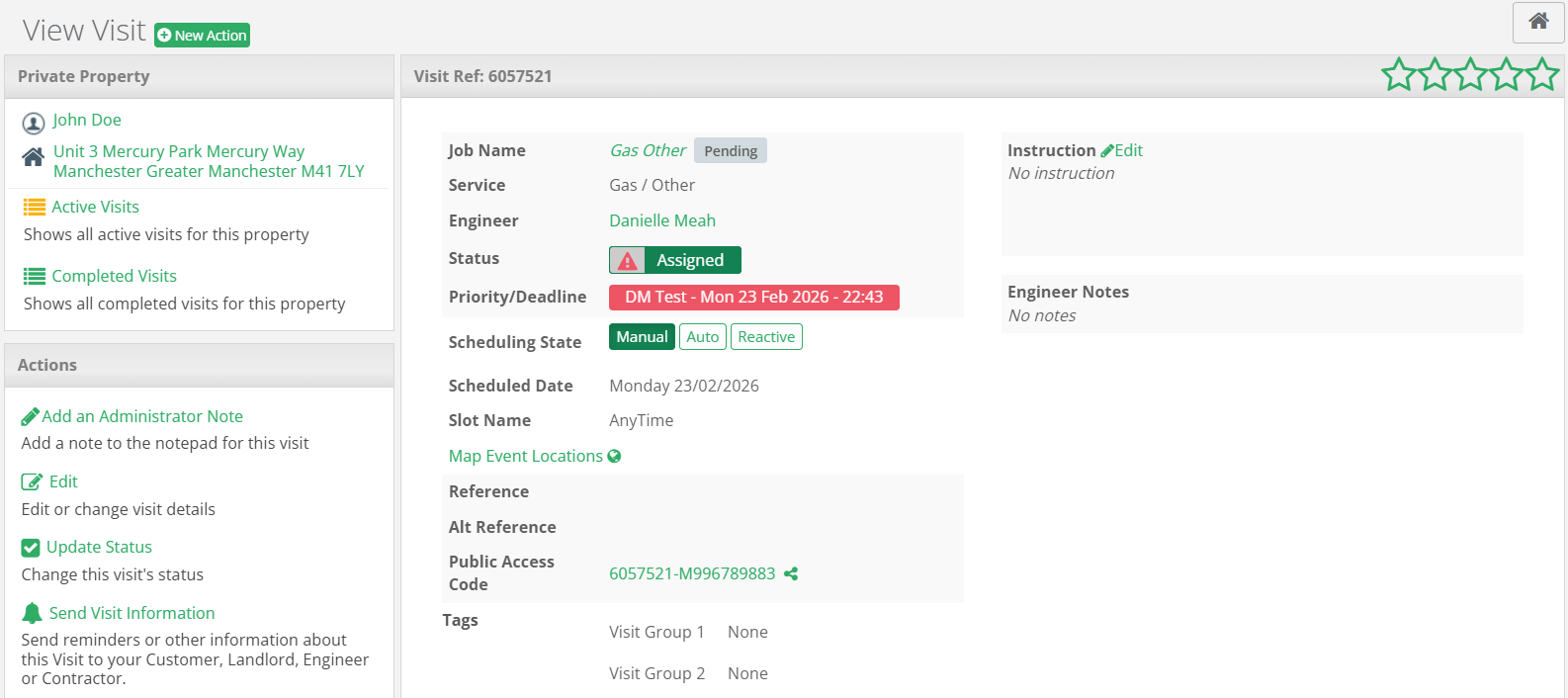
In the Actions box select Send Visit Information.
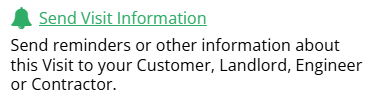
Here you will be prompted to select the format you would like to send the visit information. Select Letter and choose the letter template you would like to use. Templates can be managed via the Template Manager.
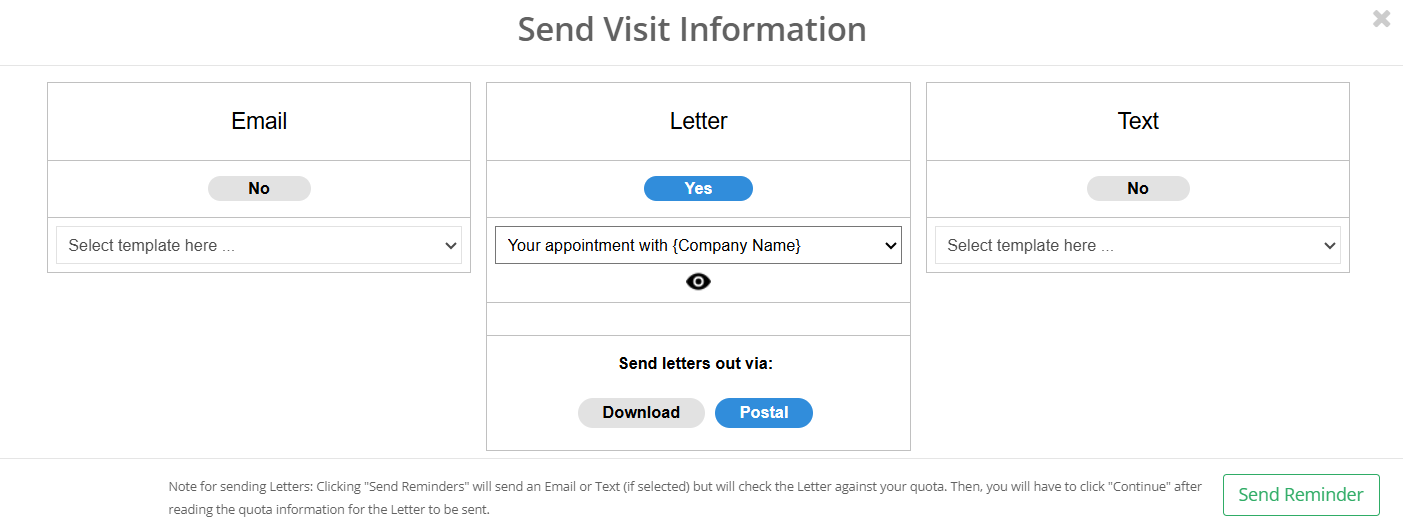
Select to send the letters out via Postal. Once this has been done, select Send Reminder. This will then prompt you to check the Quota Information where you will be informed of how many letters you are sending and how much it will cost. If you are happy with the information presented select Continue, otherwise click the cross in the top right to cancel.
You will then be notified if the letter was sent successfully.

_____________________________________________________________________________________________________________________________________
Cancelling a Letter
Once you have sent a letter you will have a 30 minute window to cancel sending the letter out. You can do this by navigating to the Communications section in the visit. The letter you have just sent will be at the top, select the x to cancel.

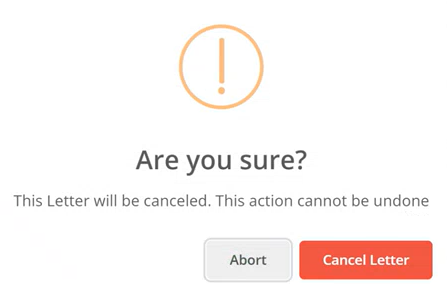
You will then be prompted to confirm the cancellation by selecting Cancel Letter. Alternatively, you can select Abort to proceed with sending out the letter.
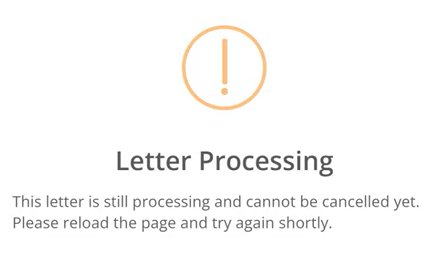
Please be aware that there is a 1 minute cool down period between sending a letter and it being able to be cancelled. If you try to cancel during this period, you will receive the following message:
_____________________________________________________________________________________________________________________________________
Checking Shipping Updates
Once a letter has been sent, you can check the Communications section of the visit to see if it has been sent successfully. Additionally you can monitor the shipping process in the Notepad section.

Was this article helpful?
That’s Great!
Thank you for your feedback
Sorry! We couldn't be helpful
Thank you for your feedback
Feedback sent
We appreciate your effort and will try to fix the article