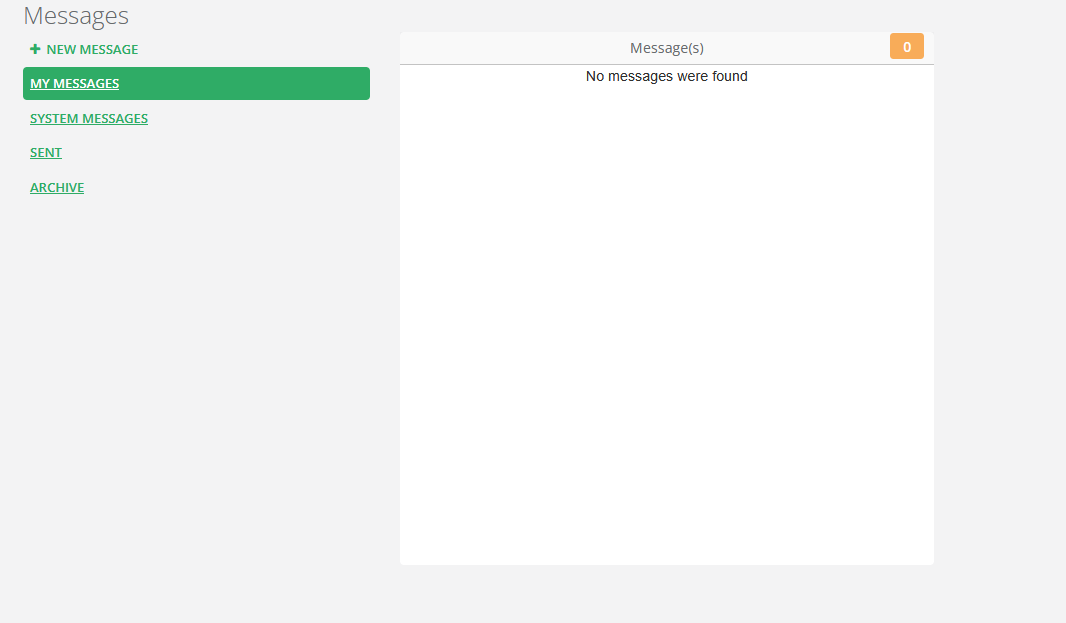
You are able to send messages internally in Propeller. Messages can be sent to both engineers and other website users. To use the Messages function, navigate to Communications > App Messaging.
_____________________________________________________________________________________________________________________________________
Sending a Message
To send a message, select New Message.
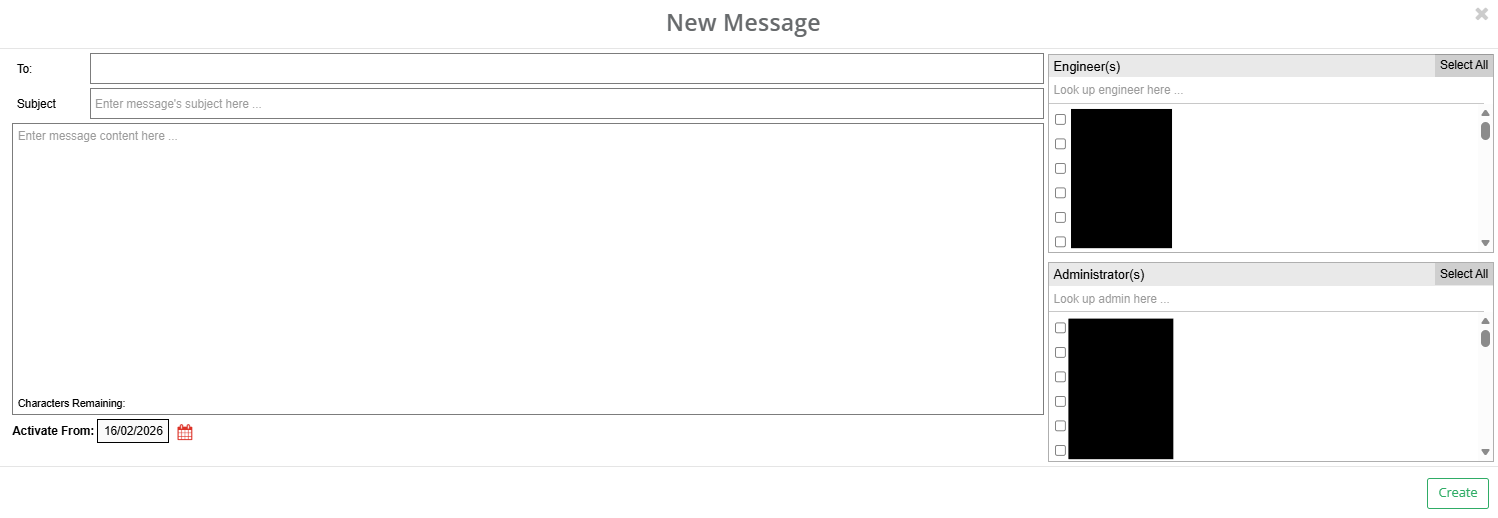
Here, potential recipients are divided between Engineers and Website Users. You can search for specific users in each section. Multiple recipients can be selected - to do this, select the box next to their name. When an individual is selected, their name will appear in the To box.

Both a subject line and the message content can be added. The subject is how the message will be summarised to the recipient.
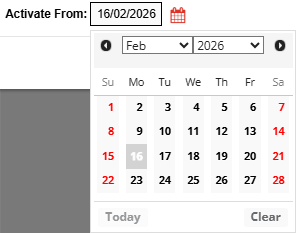
You can also select the date in which the message is sent. To do this, alter the date in the Activate From section at the bottom of the message. This will provide a drop down to select the date.
Once the message details have been entered, select Create to send the message.
_____________________________________________________________________________________________________________________________________
Receiving a Message (Web User)
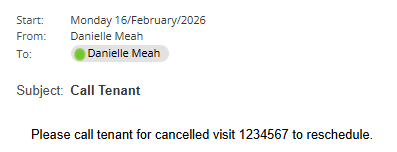
As a website user, messages you receive can either be viewed by the App Messaging page or the Messages widget on the dashboard. More about the Messages widget can be found here.
Messages you have been sent can be found in the My Messages section. Here you can find all the messages you have been sent, as well as the total number of messages you have received.
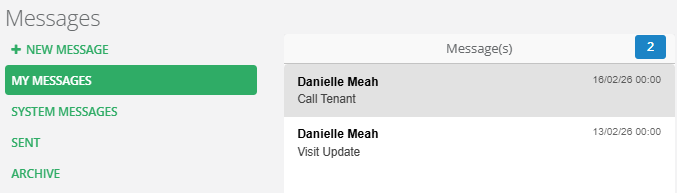
Click on a message to read it. The message will also detail when it was sent and who sent it.
_____________________________________________________________________________________________________________________________________
Receiving a Message (Engineer)
Engineers will receive messages via the Message Inbox in Tools and Maintenance. This is where the engineer can view previous messages. An engineer is required to sync their device to receive a message once it has been sent. Once this has been done, they will be notified that they have been sent a message.
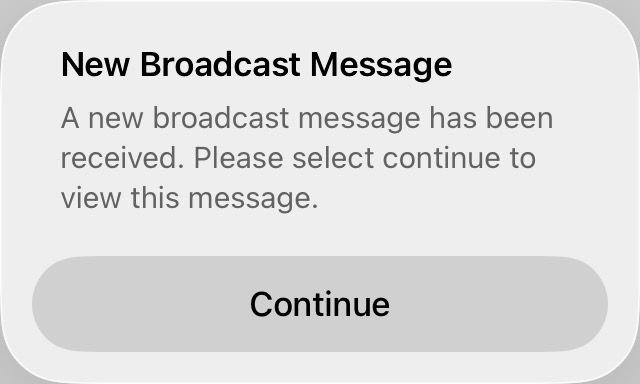
When the engineer selects Continue, the message will be opened automatically.
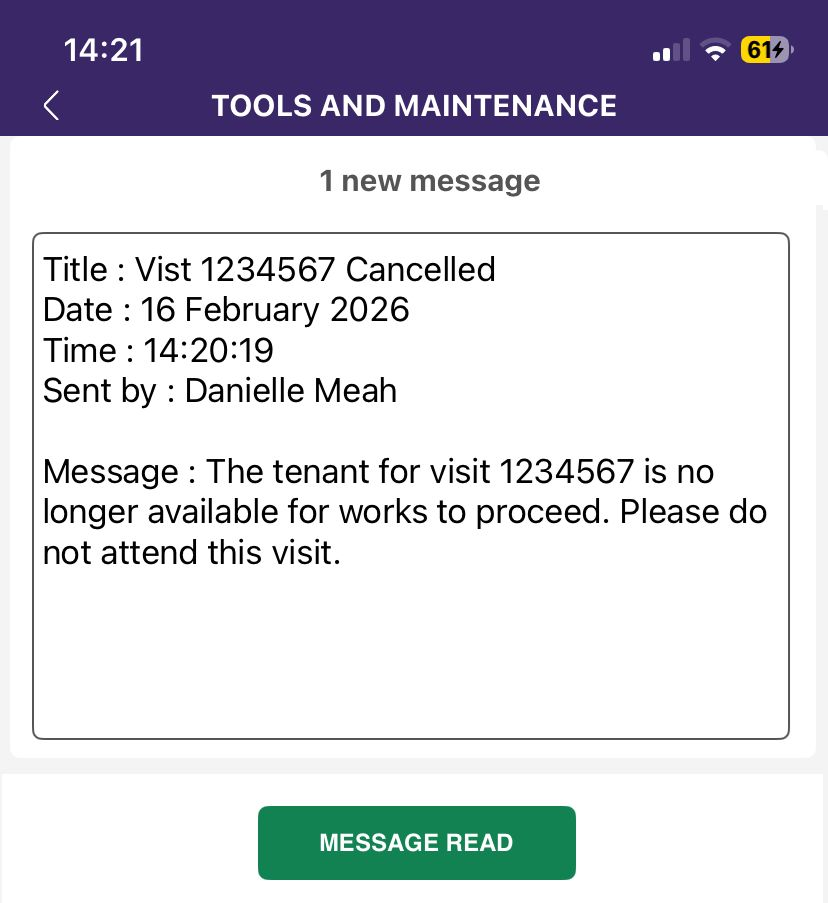
Selecting Message Read will add the message to the inbox.
_____________________________________________________________________________________________________________________________________
Sent Messages
When a message has been successfully sent, it will appear in the Sent section. You can monitor the status of the message via the icon next to the recipient(s) name.
If the icon is grey, the message has not been opened. Alternatively, if the user has read the message the icon will turn green.
 Received Received |  Read Read |
_____________________________________________________________________________________________________________________________________
Archive
You can archive messages on Propeller. To do this, select the message you would like to archive and then select the Archive Message button. This can be found on the top right of the message.

This message will now be stored in the archive. If needed you can reverse this action by selecting the Move to Inbox button on the message.

Was this article helpful?
That’s Great!
Thank you for your feedback
Sorry! We couldn't be helpful
Thank you for your feedback
Feedback sent
We appreciate your effort and will try to fix the article