Propeller's Automatic Finance Rules can create invoices, material lists, quotes or purchase orders upon visit creation with no additional steps for a website administrator. These can be set up for one or more of the following:
- Service
- Service Type
- Landlord
- Property Type
Note: Parts/SORs need to be created prior to setting up the Automatic Finance Rules. You can find the guides to do this below:
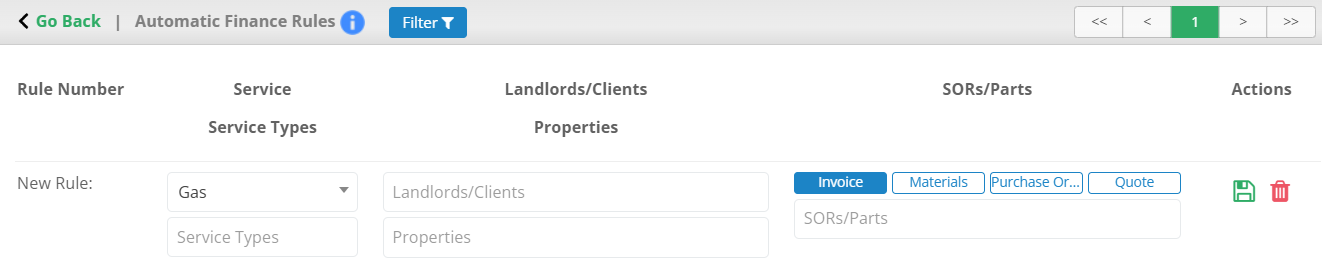
To set up the Automatic Finance Rules, navigate to Settings > Preferences > Automatic Finance Rules. Here you can view existing rules and create new ones.
___________________________________________________________________________________________________________________________
Create an Automatic Finance Rule
You can add a new rule via the New Rule row at the top of the page. You can assign the rule the following details:
- Service - The type of service the rule effects (gas/electrical/oil/sweep/trade/commercial gas).
- Service Type - If the rule applies to a specific type of work (e.g.. collection/decommission/delivery).
- Landlord/Clients - For if the rule only applies to specific landlords/clients.
- Property - For if the rule only applies to specific properties (can search for this by address).
- SORs/Parts - What the rule applies to (invoice/materials/purchase orders/quotes), you can also apply the rule to specific SORs/parts by searching for the SOR/part codes.
The Service the rule applies to as well as the SORs/Parts that are to be generated are mandatory.

Select the Save icon once the rule is complete.
You will now be able to find the new rule at the bottom of the page.

If you need to create a rule similar to an existing one, you can clone the required rule.

You can do this by selecting the Clone icon.
___________________________________________________________________________________________________________________________
Edit an Automatic Finance Rule
You can make changes to existing rules without having to go into an Edit view.

Simply make the changes to the desired rule (similar to the creation process), then select the Save Changes icon.
Alternatively, if you decide not to make changes to the rule you can select the Revert Changes button.

This will put the rule back to its initial state.
___________________________________________________________________________________________________________________________
Delete an Automatic Finance Rule

Select the Bin icon on the rule you would like to delete.
This will immediately remove the rule and will no longer be applicable to future instances of where the rule would take place.
Was this article helpful?
That’s Great!
Thank you for your feedback
Sorry! We couldn't be helpful
Thank you for your feedback
Feedback sent
We appreciate your effort and will try to fix the article