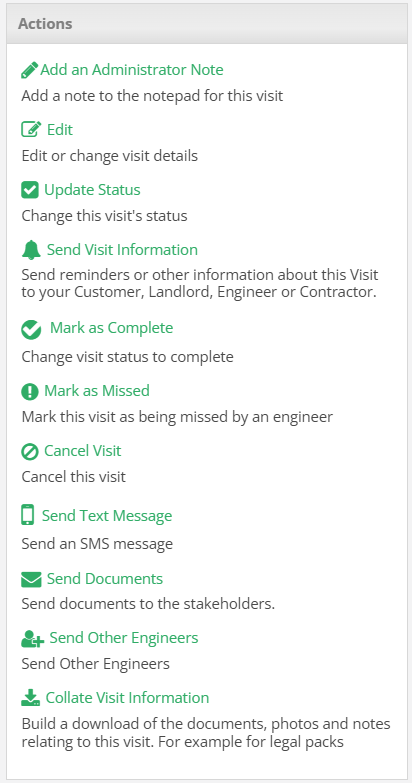
When a visit/job/property has been selected, it can be managed via the Actions box to the right of the page. Depending on what is selected, different actions can be carried out that are catered to what the object's purpose is.
_____________________________________________________________________________________________________________________________________
Visit Actions (Open)
_____________________________________________________________________________________________________________________________________
Add Administrator Note
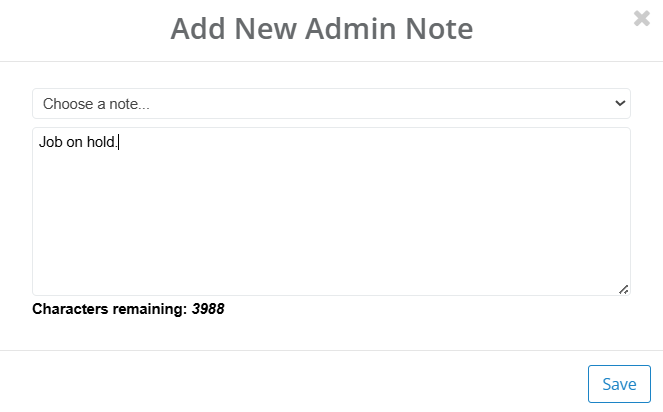
Adding an administrator note creates a custom note at the bottom of the notepad on the visit. When this action is selected, it will prompt you to either use a note template (which is set up in Admin Notes), or write your own. Once the note has been entered, select Save.
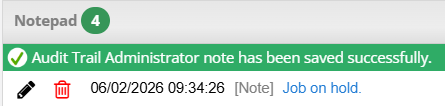
Once added to the notepad, the note can either be edited with the pencil icon, or deleted via the bin icon.
_____________________________________________________________________________________________________________________________________
Edit
This allows you to edit the job details. However, this option will not be available if the job has been attended.
_____________________________________________________________________________________________________________________________________
Update Status
With this you can change the status of the visit, and add any optional comments as to why the status has changed. Once these details have been entered, select Update to save the changes.
_____________________________________________________________________________________________________________________________________
Send Visit Information
When a visit is to be attended, you can to notify the occupier of the property with the visit information. With this action you are prompted to select whether to send the notification via email, letter, and/or text.
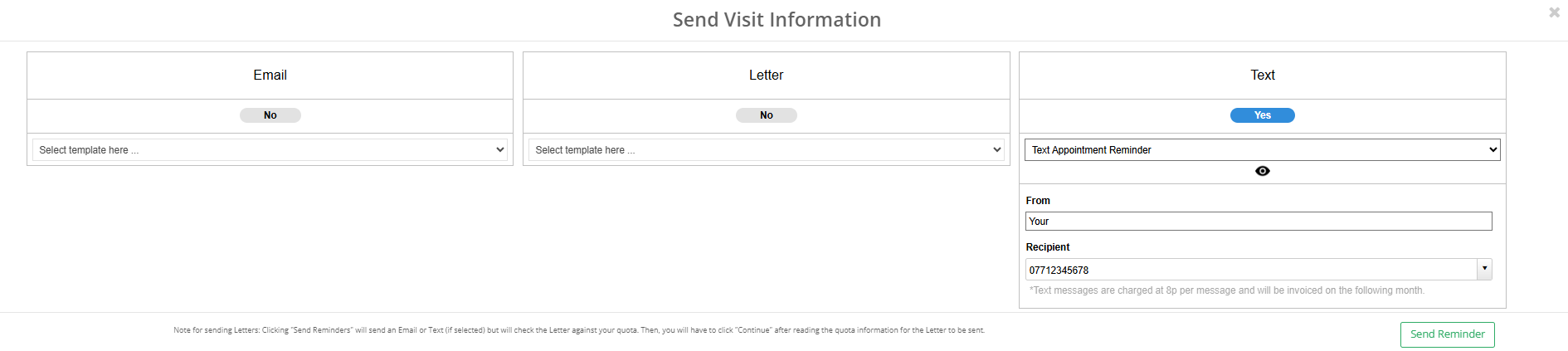
Once you have selected a form of communication, you can then select a template you would like to use. More about templates can be found here. From here, enter the recipient details and who you would like the message to be sent from. To send the message, click Send Reminder.
_____________________________________________________________________________________________________________________________________
Mark As Complete
This allows you to mark the visit with an attended status. In order to do so, the action will prompt you to enter the date the job was attended and start/finish times. You can change the status to either complete, further works, or closed. Additionally, you can add further comments that will be added to the Engineer Notes section. If the visit includes a property check, you can note the outcome.
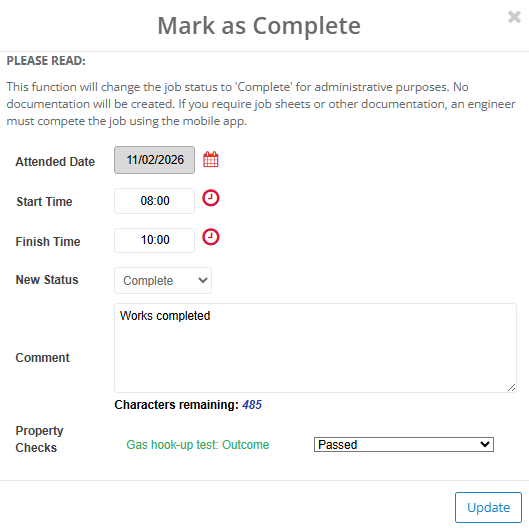
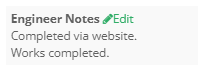
Once these details have been entered, select Update.
_____________________________________________________________________________________________________________________________________
Mark as Missed
Similar to the above, this allows you to mark the visit as missed. This will prompt you to enter the reason why the visit was missed, as well as any other additional comments. The additional comments will be added to the notepad section of the visit.
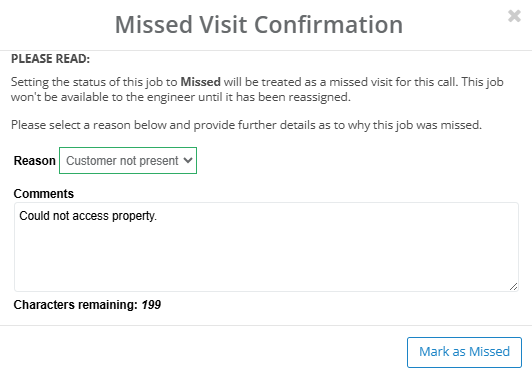

Once details have been entered, select Mark as Missed.
_____________________________________________________________________________________________________________________________________
Cancel Visit
This will cancel the visit. To do this, select whether the visit was cancelled by the customer, and then enter further details as to why the visit was cancelled. Once this has been entered, select Cancel Visit.
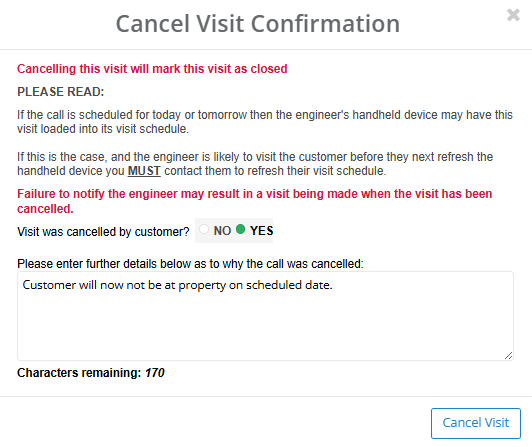
Please be advised that cancelling a visit on the same day/the day before as it is scheduled may not alert the engineer if the visit is already on their device. If this is the case, please contact the engineer to make them aware of the cancellation.
_____________________________________________________________________________________________________________________________________
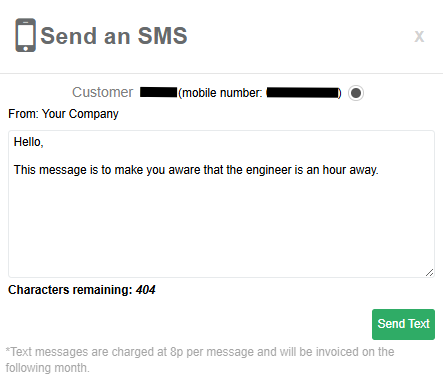
Send Text Message
Similar to the Send Visit Information action, this allows you to send a text message to the occupier. This, however, is not template based; you can manually enter any message you would like to send. Once complete, click Send Text to send this to the occupier.
_____________________________________________________________________________________________________________________________________
Send Documents
The Send Documents action enables you to send documents associated to the visit to stakeholders. More can be found about emailing documents here.
_____________________________________________________________________________________________________________________________________
Send Other Engineers
For a visit that needs to be attended by multiple engineers, this action allows you to assign all engineers to the visit. This will then make the visit a Complex Job. Details on Complex Jobs can be found here.
_____________________________________________________________________________________________________________________________________
Collate Visit Information
This will download all details regarding the visit. Select this action, and then choose which aspects of the visit you would like to collate.
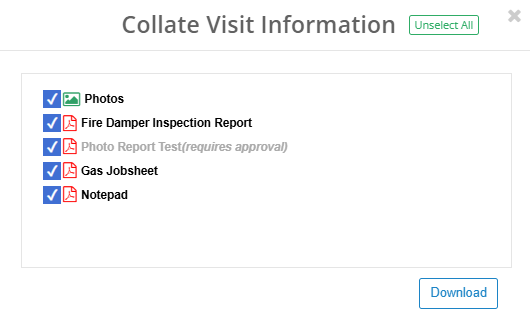
Once the desired documents have been selected, click Download. This will download the information as a ZIP file to your device.
_____________________________________________________________________________________________________________________________________
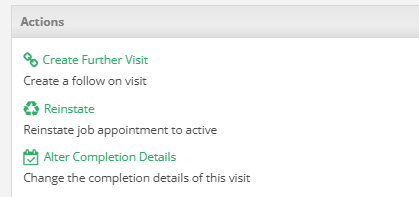
Visit Actions (Closed)
_____________________________________________________________________________________________________________________________________
Create Further Visit
Once a visit has been attended, it may require further work. This action allows you to quickly create another visit following on from the original attendance.
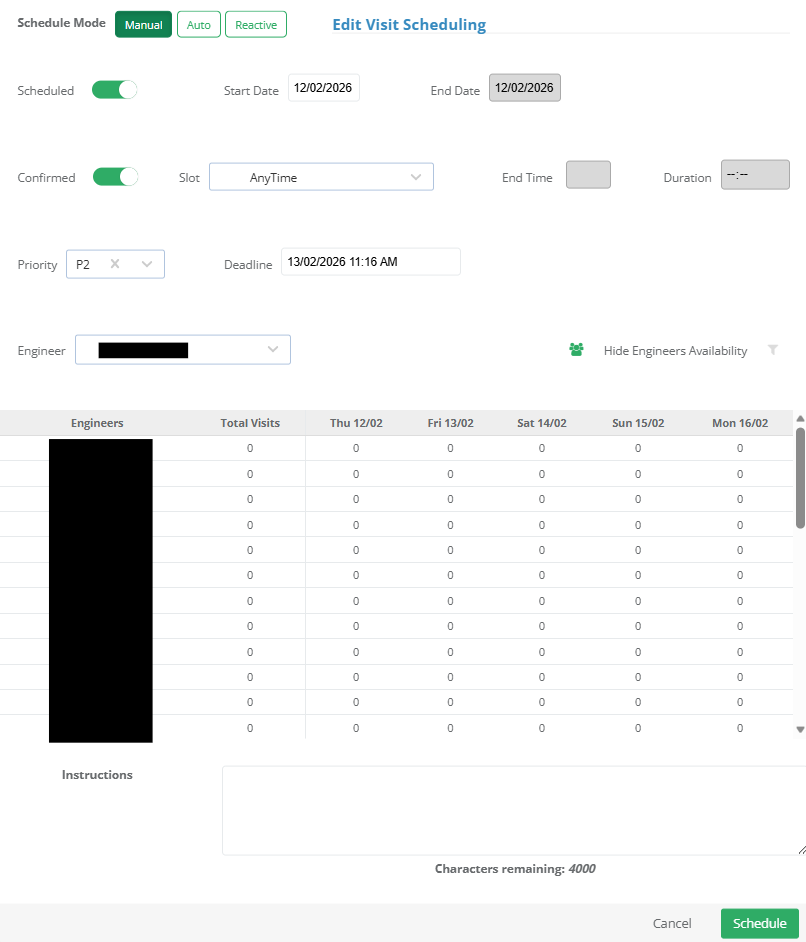
Here, you can choose whether to schedule the works manually, automatically or reactively. Once the required details have been entered, click Schedule.
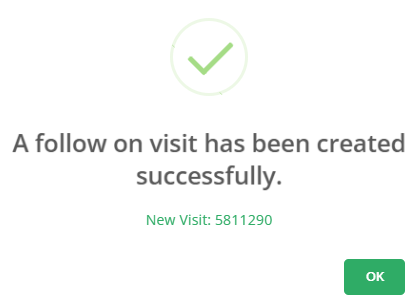
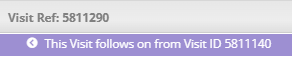
You will be informed of the new visit reference (you can select this to open the full visit page). When viewing the new visit, it will notify you that the visit is a follow on.
_____________________________________________________________________________________________________________________________________
Reinstate
Reinstating a visit sends it back to the engineer it was allocated to and change the status to Assigned. This will keep any information the engineer originally entered on the app, and will allow them to edit the data as well as add any further documents. The engineer will have to complete the job on the app for it to close once again on the website.
_____________________________________________________________________________________________________________________________________
Alter Completion Details
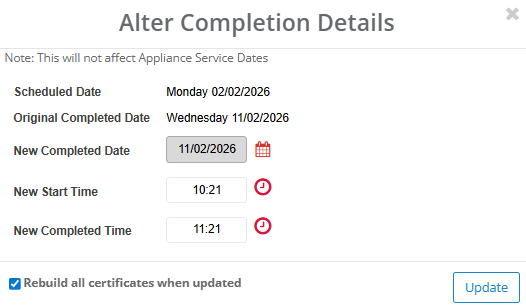
Here you can change a visits completion date and time. You can also select whether to update the documents on the visit to reflect this change. Once the details have been entered, select Update.
_____________________________________________________________________________________________________________________________________
Job Actions
_____________________________________________________________________________________________________________________________________
Edit
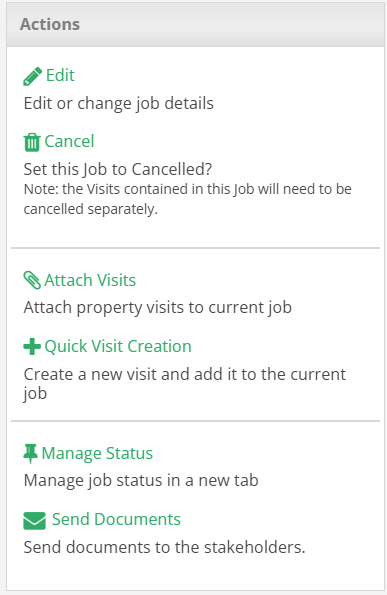
This allows you to edit the job details.
_____________________________________________________________________________________________________________________________________
Cancel
This will cancel the job. The visits will still remain on the system, but will no longer be grouped together. If you need to cancel the visits, this will have to be done individually per visit. Jobs that are cancelled can be reactivated and the visits will once again be grouped together.
_____________________________________________________________________________________________________________________________________
Attach Visits
This will display any open visits associated to the property. To add these to the job, select the check box in the Action column of the visit you want to add (or Select All), then choose Attach to assign the visit to the job.

_____________________________________________________________________________________________________________________________________
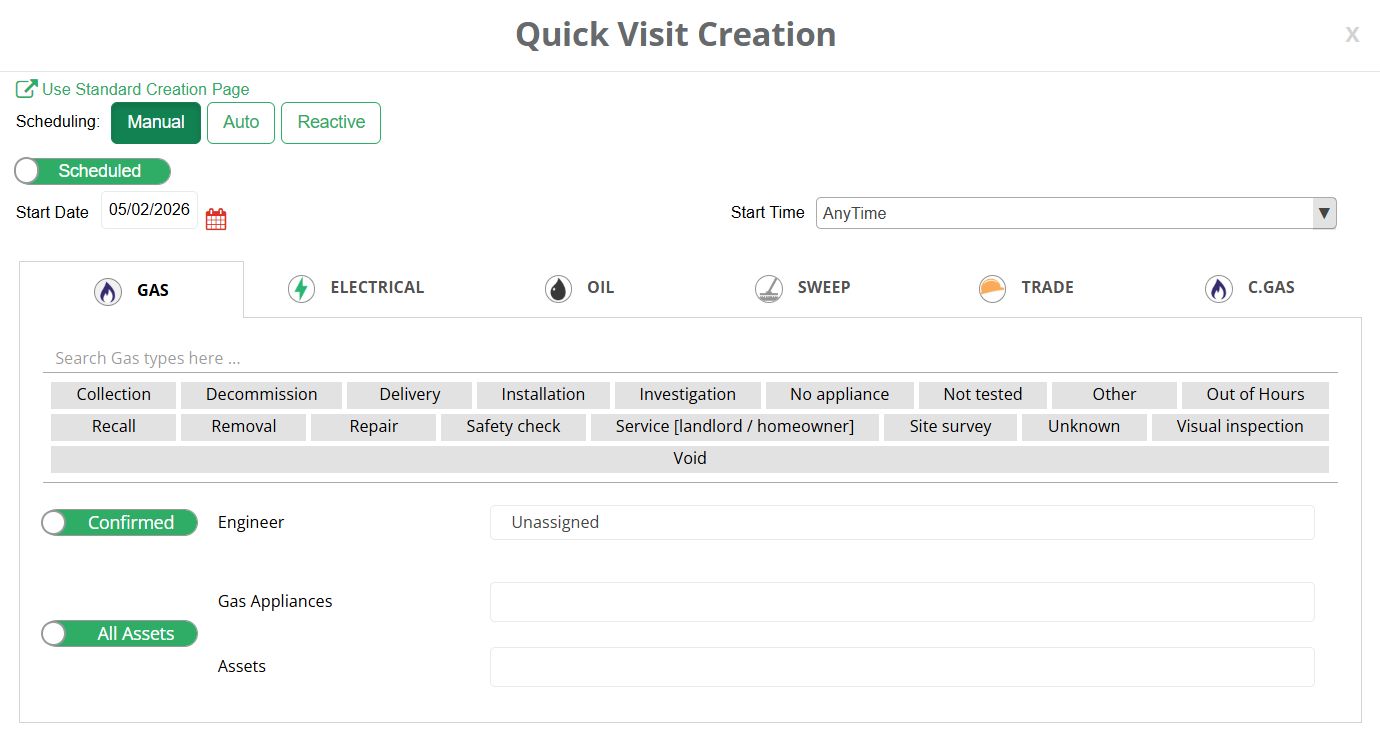
Quick Visit Creation
Similar to Attach Visits, this will assign a visit to the job, however this is created through the job rather than selected and assigned.
_____________________________________________________________________________________________________________________________________
Manage Job Status
This action does not change the status of the job, in order to do this select "Edit" next to the status in the job description.
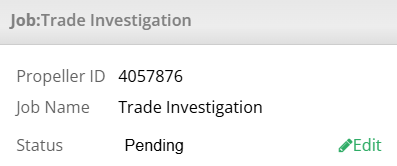
The action instead allows you to create a custom status for the job, which makes it easier to track and manage in line with your company's needs. You can specify the name, and what Landlord the status applies to. Once the status has been added, you can assign this status via the process above.

_____________________________________________________________________________________________________________________________________
Send Documents
The Send Documents action enables you to send documents associated to the job to stakeholders. More can be found about emailing documents here.
_____________________________________________________________________________________________________________________________________
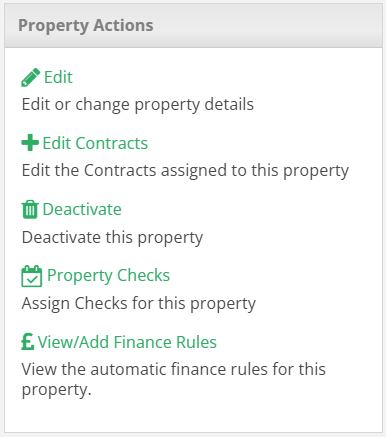
Property Actions
_____________________________________________________________________________________________________________________________________
Edit
This allows you to edit the property details.
_____________________________________________________________________________________________________________________________________
Edit Contracts
This allows you to edit the contracts assigned to the property. Select the check box next to the contracts you want to assign. Select Update to add the contracts.
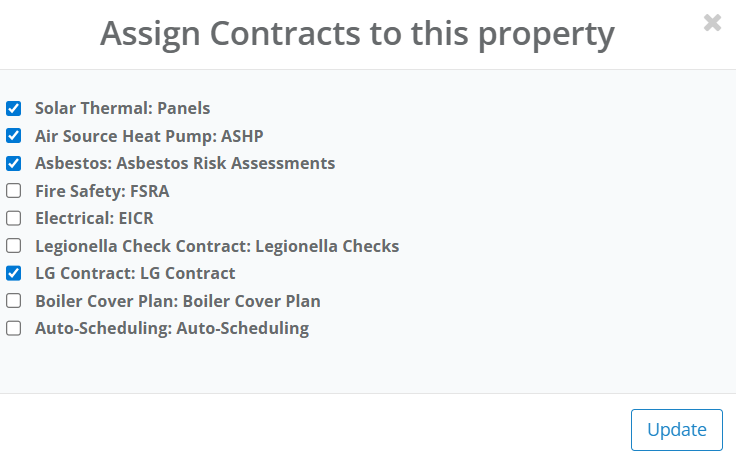
These will then be visible in the contract section of the property. If you would like to remove any contracts, unselect the contracts on the Edit Contracts list.

_____________________________________________________________________________________________________________________________________
Deactivate
This will prevent visits and jobs from being assigned from the property as it will be treated as if the property has been deleted. However, deactivating the property still keeps it on the system, meaning if you wish the property can be reactivated and still maintain the data prior to when it was originally deactivated.
_____________________________________________________________________________________________________________________________________
Property Checks
This allows you to create scheduled checks regarding the property. You can specify the check by trade type, and can search the check you want to assign.
Once you have selected the required check, you can provide an initial check date, the status from initial check, and the deadline. The deadline should be calculated automatically, however, this can be changed manually.
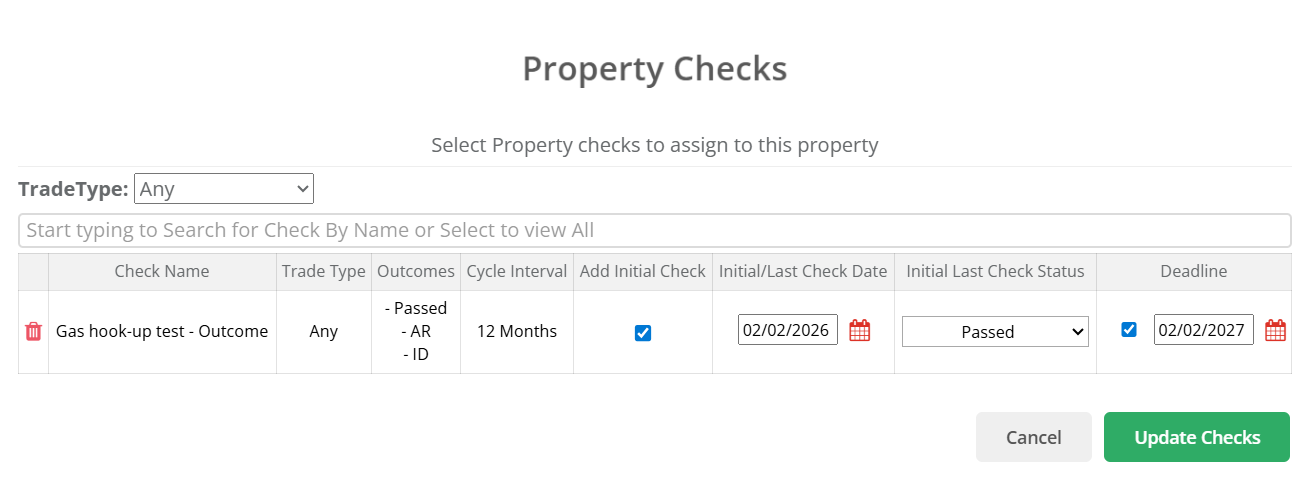
Select Update Checks to save. The same action can be used to edit any existing property checks.
_____________________________________________________________________________________________________________________________________
View/Add Finance Rules
This will take you to the Automatic Finance Rules page. These rules will automatically assign items on an invoice/materials list/PO/Quote when a visit of a certain type is created for that property.
Was this article helpful?
That’s Great!
Thank you for your feedback
Sorry! We couldn't be helpful
Thank you for your feedback
Feedback sent
We appreciate your effort and will try to fix the article