Jobs are a parent of Visits - these can be a way to easily group multiple Visits together.
When a Visit is created normally a Job is also created automatically, however, they can also be manually created. This process functions similarly to creating a visit.
To create a new Job navigate to the Creation Page which can be found in Jobs/Visits > Create New.
_____________________________________________________________________________________________________________________________________
Address Lookup
The first step is to enter the property postcode.
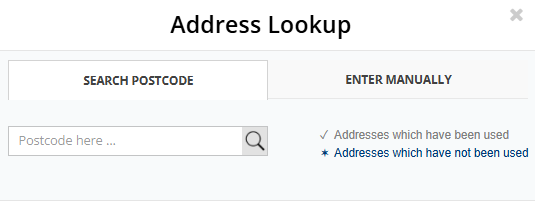
You can use either the Postcode search or enter the address manually.
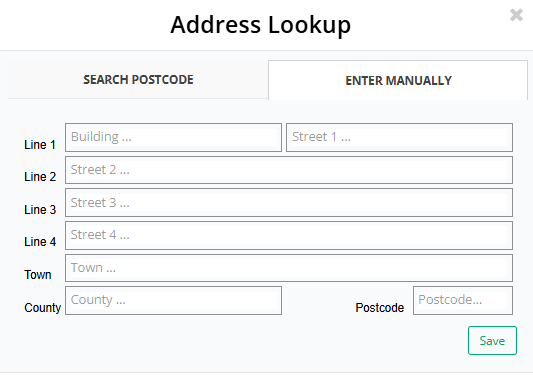
For the postcode search to work there must be a space between the area and local codes (for example: M33 2AA).
If the property already exists in your database it will be marked in grey, otherwise it will be blue.
Once you have found the property you require simply click the list item.
_____________________________________________________________________________________________________________________________________
Job Name
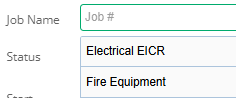
Next enter the name of the job. You can either do this manually or a drop down will be provided of previous job names.
_____________________________________________________________________________________________________________________________________
Status
You can select the status of the Job from the dropdown box, this can be changed later.

____________________________________________________________________________________________________________________________________
Start
This is the job start Date and Time, this can be changed to meet your needs.

_____________________________________________________________________________________________________________________________________
Priority and Deadlines
Here you can set the Priority based on your Priority List.

____________________________________________________________________________________________________________________________________
Finish
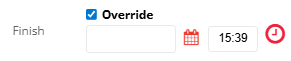
The Job Finish time and date will automatically be set to when the last visit is completed.
However if you check the Override option, this will allow you to manually set a date and time.
____________________________________________________________________________________________________________________________________
References
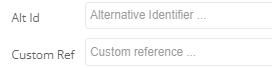
These allow you to enter either a custom reference or an alternative ID, these can be useful for finding the jobs in the future or if you use a 3rd party application to enter the ID/reference.
____________________________________________________________________________________________________________________________________
Comments
This allows you to enter notes for the overall job.

_____________________________________________________________________________________________________________________________________
Tags
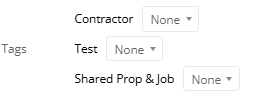
This allows you to Tag the job. For more information on tags please visit the Tags section.
Was this article helpful?
That’s Great!
Thank you for your feedback
Sorry! We couldn't be helpful
Thank you for your feedback
Feedback sent
We appreciate your effort and will try to fix the article