You can view a list of jobs at Jobs/Visits > Jobs > View All
_____________________________________________________________________________________________________________________________________
Filter Options
If you want to apply changes to all jobs in your current filtered view, use the Select Allcheckbox at the top of the list to select everything in one go.

_____________________________________________________________________________________________________________________________________
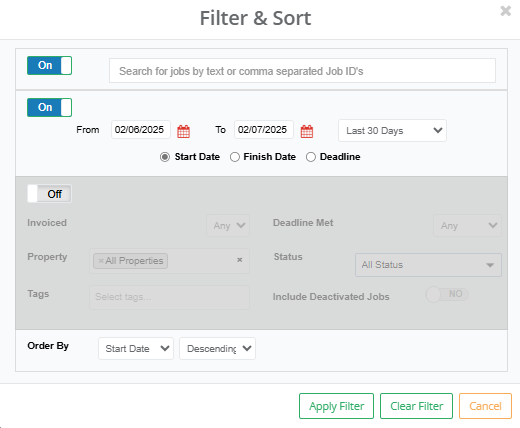
Basic Filter
With the basic filter, you can quickly narrow down the job list using the following search options in the search bar:
Full or partial postcodes
Part of the job address
Customer name
Customer email address
Job ID
Visit Type (e.g. Electrical, Gas, Trade)
Job Activity (e.g. Installation, Repair, Survey)
Engineer name (full or partial)
_____________________________________________________________________________________________________________________________________
Date Filter
You can filter jobs using the following date types:
Start Date
Finish Date
Deadline
Date ranges can be adjusted manually, or you can select a pre-set like “Last 30 Days”.
_____________________________________________________________________________________________________________________________________
Other Filters
Additional filters include:
Whether the job has been invoiced
If the deadline has been met
Specific property
Job status (All Statuses or a specific one)
Job tags
Option to include deactivated jobs
You can also sort results by:
Start Date
Finish Date
Deadline
With sorting set to either ascending or descending
_____________________________________________________________________________________________________________________________________
Interacting with Jobs
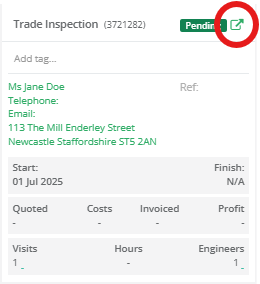
Clicking into any job from the list will open its full details, where you can view associated visits, status updates, costs, and job history.
_____________________________________________________________________________________________________________________________________
Bulk Update
You can quickly apply changes to multiple jobs using the Bulk Update tool.
If you want to apply changes to all jobs in your current filtered view, use the Select All checkbox at the top of the list to select everything in one go.
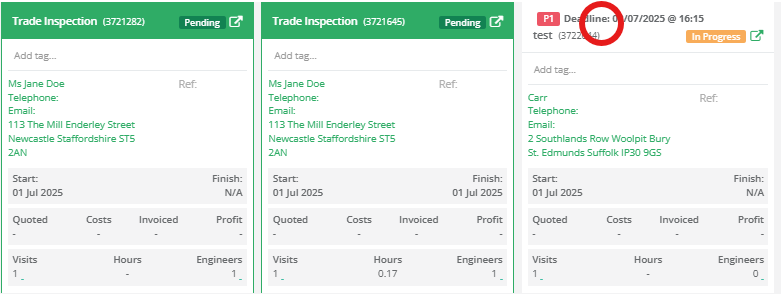
1. Select Multiple Jobs
Click the top banner of the job you'd like to update in bulk.
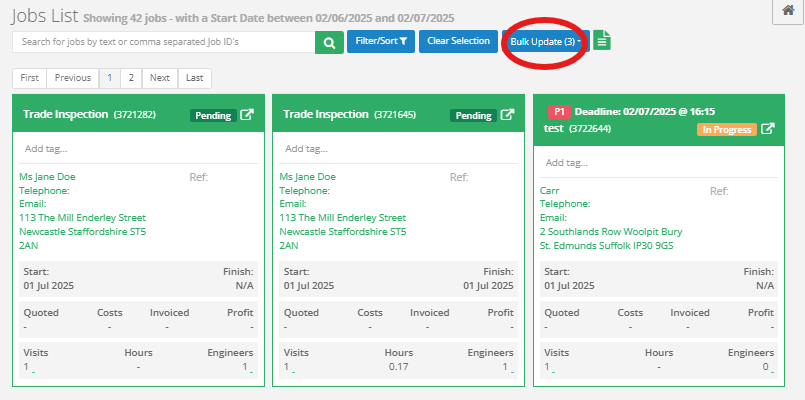
2. Open the Bulk Update Menu
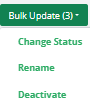
Once you've selected the jobs, you'll see the green Bulk Update (x) button appear above the list. Click this to view available actions:
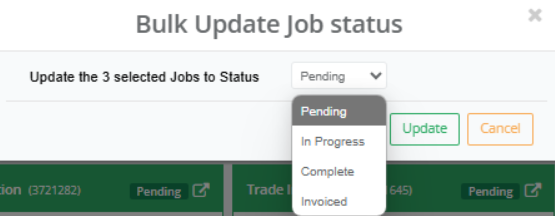
Change Status
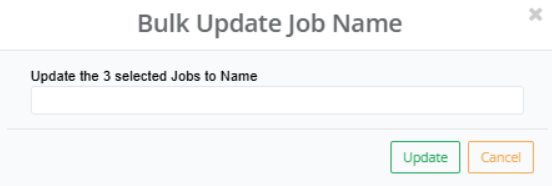
Rename
Deactivate
3. Configure Your Updates
A modal window will appear where you can choose what you'd like to update.
Click Apply once you’re ready to save changes across all selected jobs.
_____________________________________________________________________________________________________________________________________
Exporting Jobs List
You can export the current filtered list of jobs using the Export to CSV option. This allows you to download a snapshot of the job data visible in the list view.

Was this article helpful?
That’s Great!
Thank you for your feedback
Sorry! We couldn't be helpful
Thank you for your feedback
Feedback sent
We appreciate your effort and will try to fix the article