A Complex Job is a visit attended by multiple engineers.
_____________________________________________________________________________________________________________________________________
Creating a Complex Job
There are two ways to create a Complex Job, one is through the Jobs section of Propeller, and the other is through the visit itself.
_____________________________________________________________________________________________________________________________________
Create a Complex Job via Visit
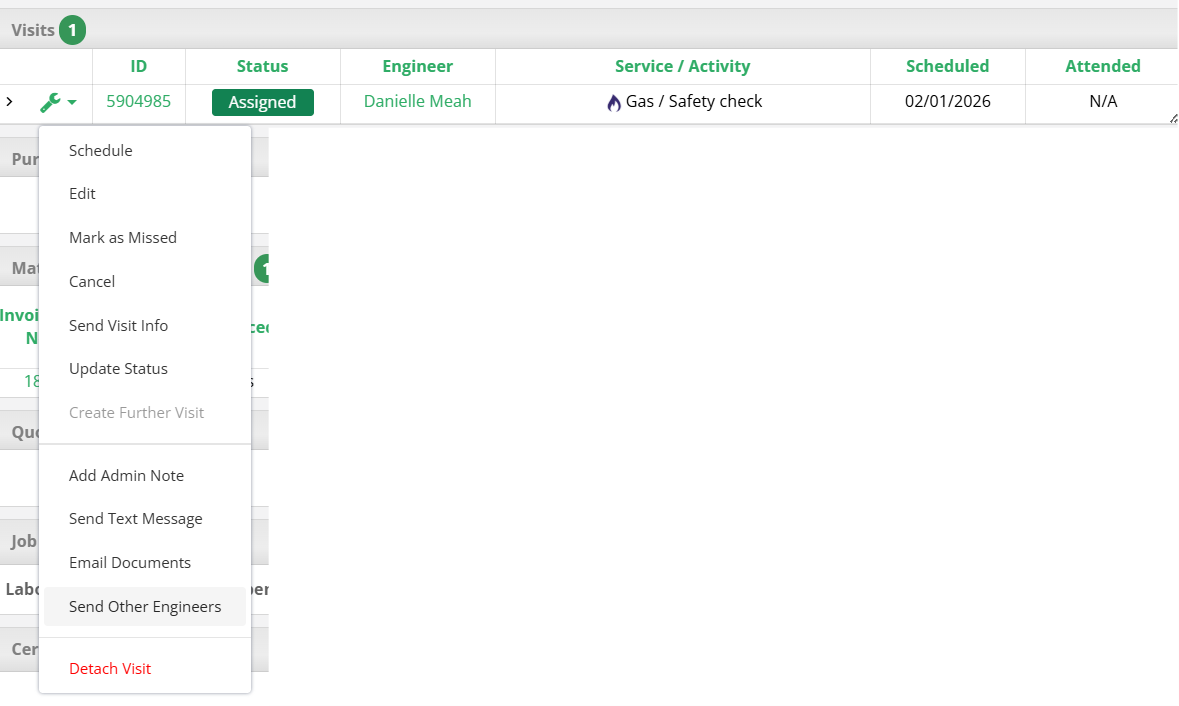
To create a Complex Job through a visit, first go to the visit to be attended by multiple engineers. To the left of the visit, select Send Other Engineers.
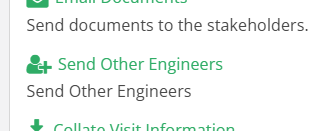
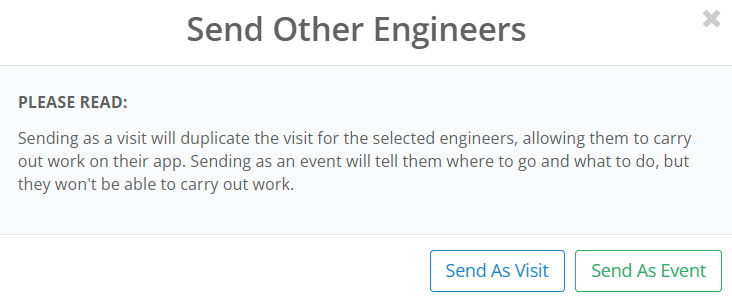
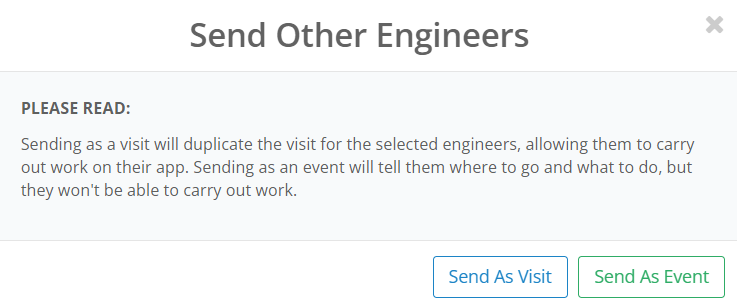
This will then prompt the job to be sent either as a "Visit" or as an "Event". More on visits and events can be found below.
_____________________________________________________________________________________________________________________________________
Create a Complex Job via Jobs
To create a Complex Job through the Jobs menu, navigate to Jobs/Visits > Jobs > View All. A complex job can either be created with an existing job, or through a new job (steps for creating a new job).
Once a job has been chosen, assign the visit to be attended by multiple engineers. There are two ways to do this, either with Attach Visits or Quick Property Creation. These can be found to the left of the job.
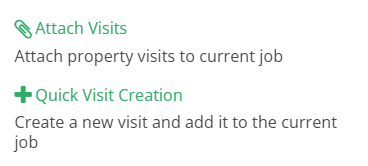
If the visit already exists, select Attach Visits. This will display all visits assigned to the property. From here, you can choose which visits to add to the job by checking the "Action" box. When all desired visits have been chosen, select the Attach Visit button.

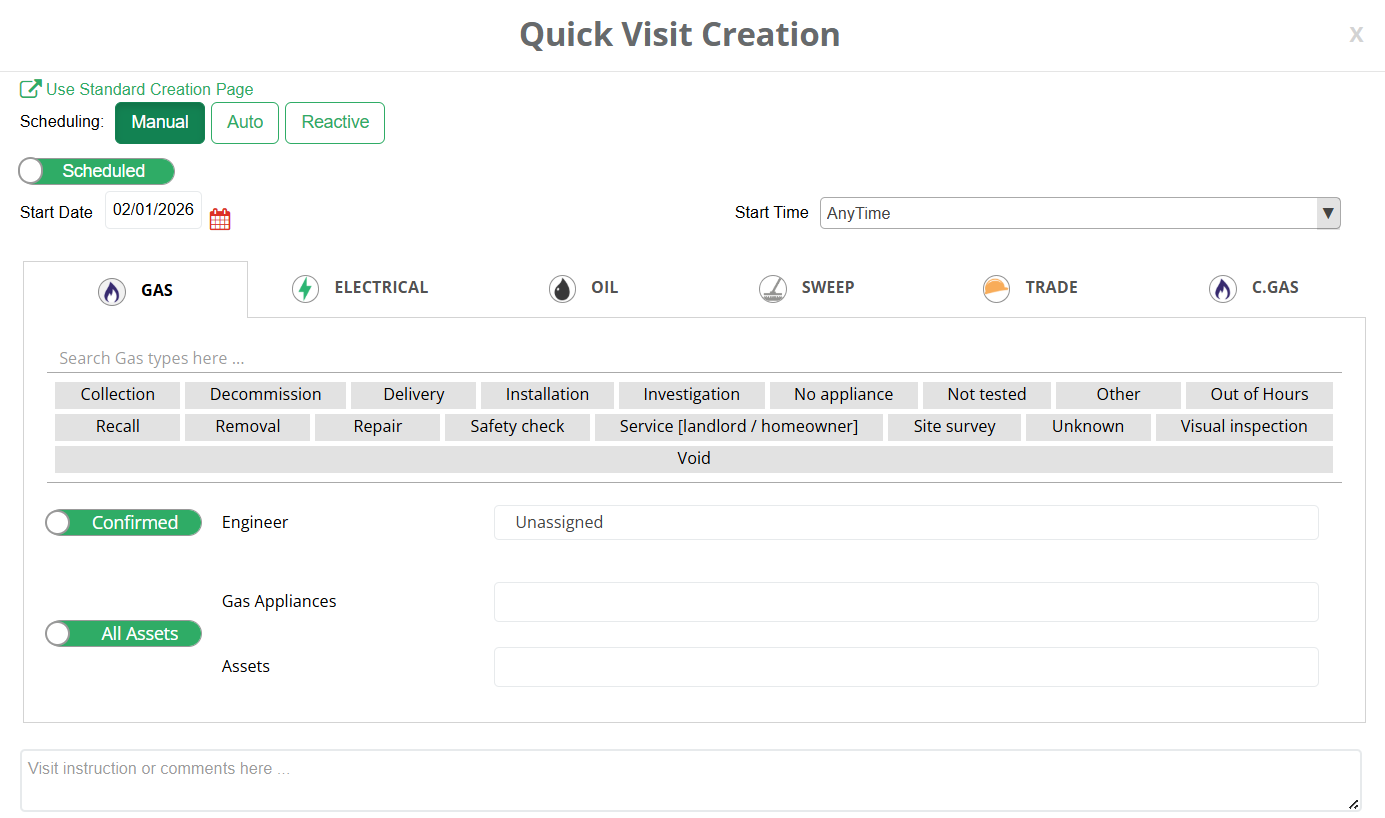
Conversely, if the visit needs to be created, select Quick Visit Creation. From here, details can be added in the same process as adding a visit. Once these details have been entered, select Create Visit. An engineer can be assigned and alerted of this visit too, however, other engineers attending the visit will have to be added after the visit's creation.
_____________________________________________________________________________________________________________________________________
Adding Engineers to a Visit
Once the necessary visits have been assigned, navigate to the Visits section of the job. To the left of the visit, there is a spanner icon - select this to open a drop down menu. From here, select Send Other Engineers.
This will then prompt the job to be sent either as a "Visit" or as an "Event".
_____________________________________________________________________________________________________________________________________
Send as Visit
Sending as a visit will send the job as individual visits to the engineers. This is ideal if the engineers are completing different work (for example, a trade engineer and an electrician). Through doing this, the engineers can create their own reports on their apps separately, but all sets of reports are encompassed under the same job.
Once Send As Visit is selected, multiple engineers can be selected via the drop down.
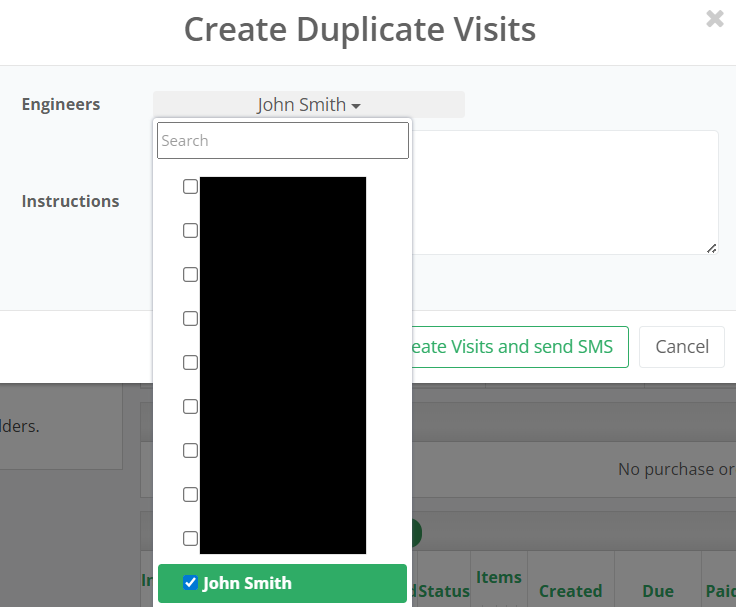
Instructions can also be specified. Once this has been completed, select Create Visits.
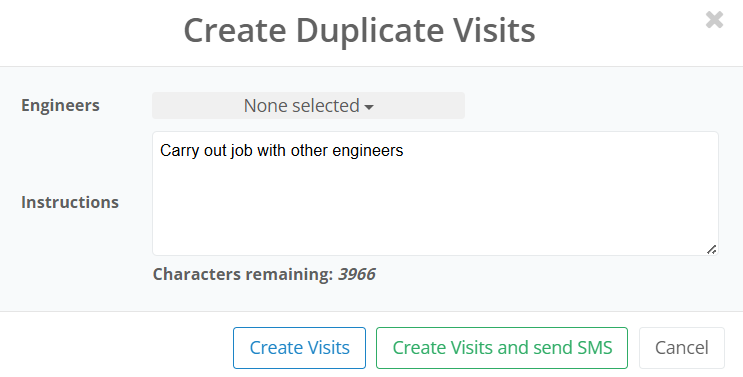
This will automatically copy the job over to the other engineer. These visits can now be found in the Visits section of the job.

_____________________________________________________________________________________________________________________________________
Send as Event
Sending as an event is preferable if the engineers attending the job are conducting the same work and do not need to create separate reports. As a result of this, only the primary engineer can fill out the reports for the visit on the app with both engineers taking credit for the work.
Once Send as Event is selected, the event details will be automictically filled out. The title will be the engineer that is being assisted, with the property location detailed in the event notes. These can be changed manually.
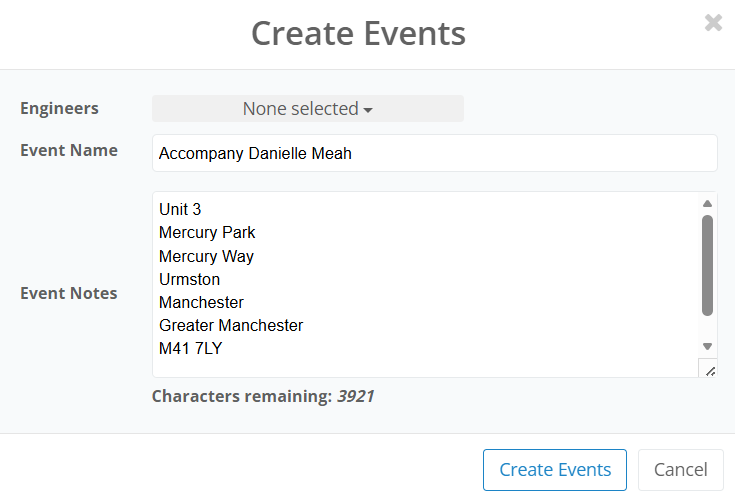
Similar to Send as Visit, the assisting engineers can be selected via the drop down.
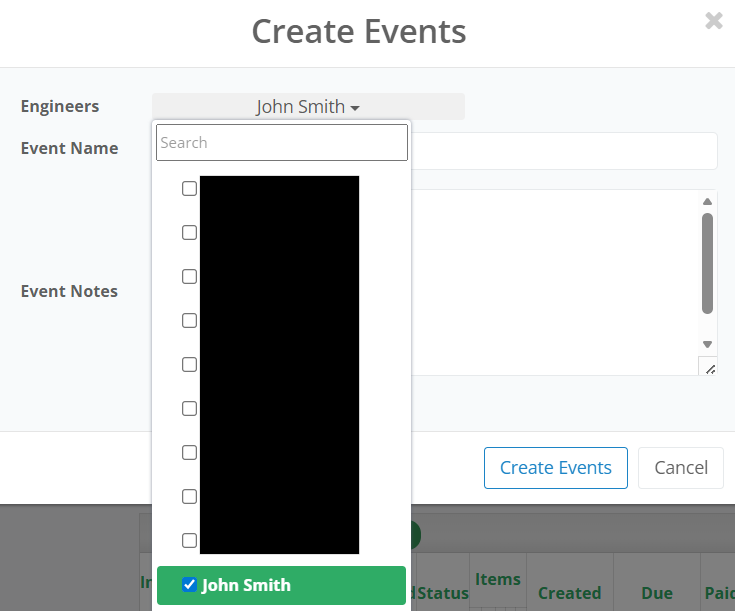
Once complete, select Create Event. This can now be found in Engineer Events.

More about Engineer Events can be found here.
Was this article helpful?
That’s Great!
Thank you for your feedback
Sorry! We couldn't be helpful
Thank you for your feedback
Feedback sent
We appreciate your effort and will try to fix the article