You can collate and then download multiple documents that fall under a desired criteria. To do this, navigate to Reports > Document Collator in the side menu.
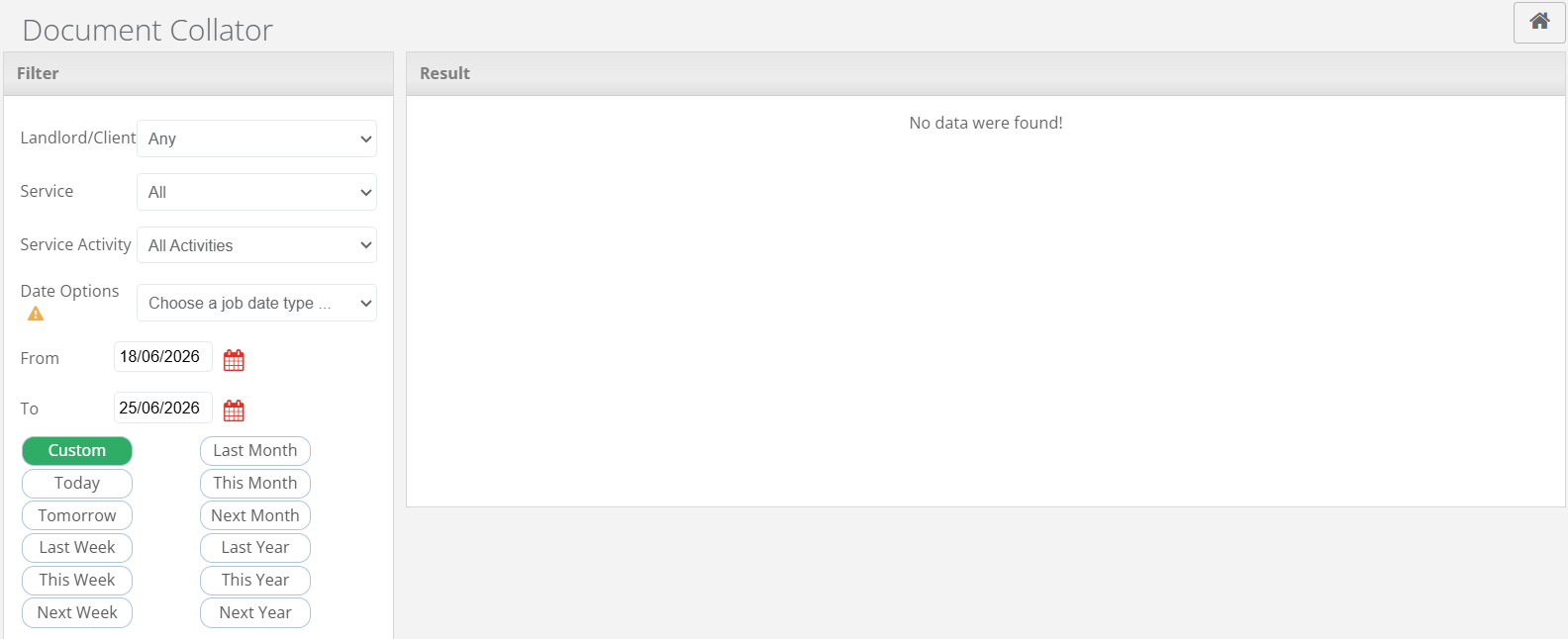
You will first have to set the Filters you would like to use in order to generate the documents. You can set the following fields to filter by:
- Landlord/Client
- Service
- Service Activity
- Date Options (Scheduled/Attended, date frame)
- Job Status Filter
- Visit Status Filter
- Document Approval Status
Once the filters have been chosen, select Load Documents.
This will then produce a list of all the documents on the system that are relevant to the applied filters. You can select the documents you want to collate by checking their corresponding box. Alternatively, check the Select All box if you require all documents listed.
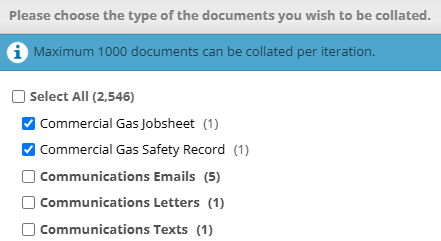
Select Next to proceed.
You will then be prompted to choose how you would like to collate the documents. This can be done by either Download or Postal. You can find a guide for Postal here.
When using the Download method, the documents can be downloaded in either PDF (all documents merged into one PDF) or ZIP (ZIP file of individual documents) format. They can also be ordered by Property or Document Type.
You will then have the options to Merge by Property and/or Add Property Address Page.
- Merge by Property - is only available if the documents are being downloaded in a ZIP format. This will merge all documents from a property into one PDF.
- Add Property Address Page - this option will an extra page with the customer's postal address.
Once the desired options have been selected, click Collate & Download.
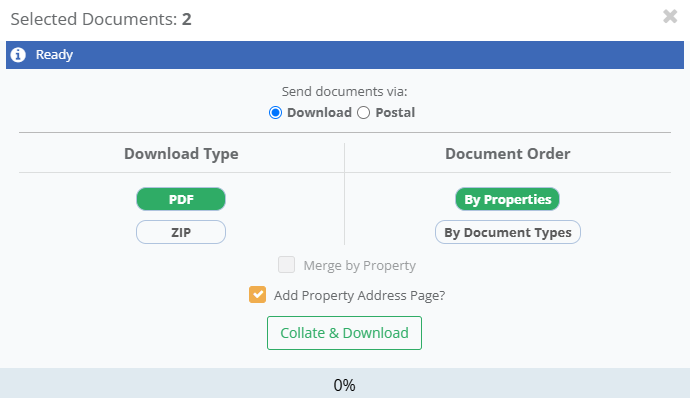
You can stop documents from collating by selecting Abort Collation.
The documents will now be downloaded to your device.
Was this article helpful?
That’s Great!
Thank you for your feedback
Sorry! We couldn't be helpful
Thank you for your feedback
Feedback sent
We appreciate your effort and will try to fix the article