You can send multiple letters using the Document Collator. To do this, navigate to Reports > Document Collator.
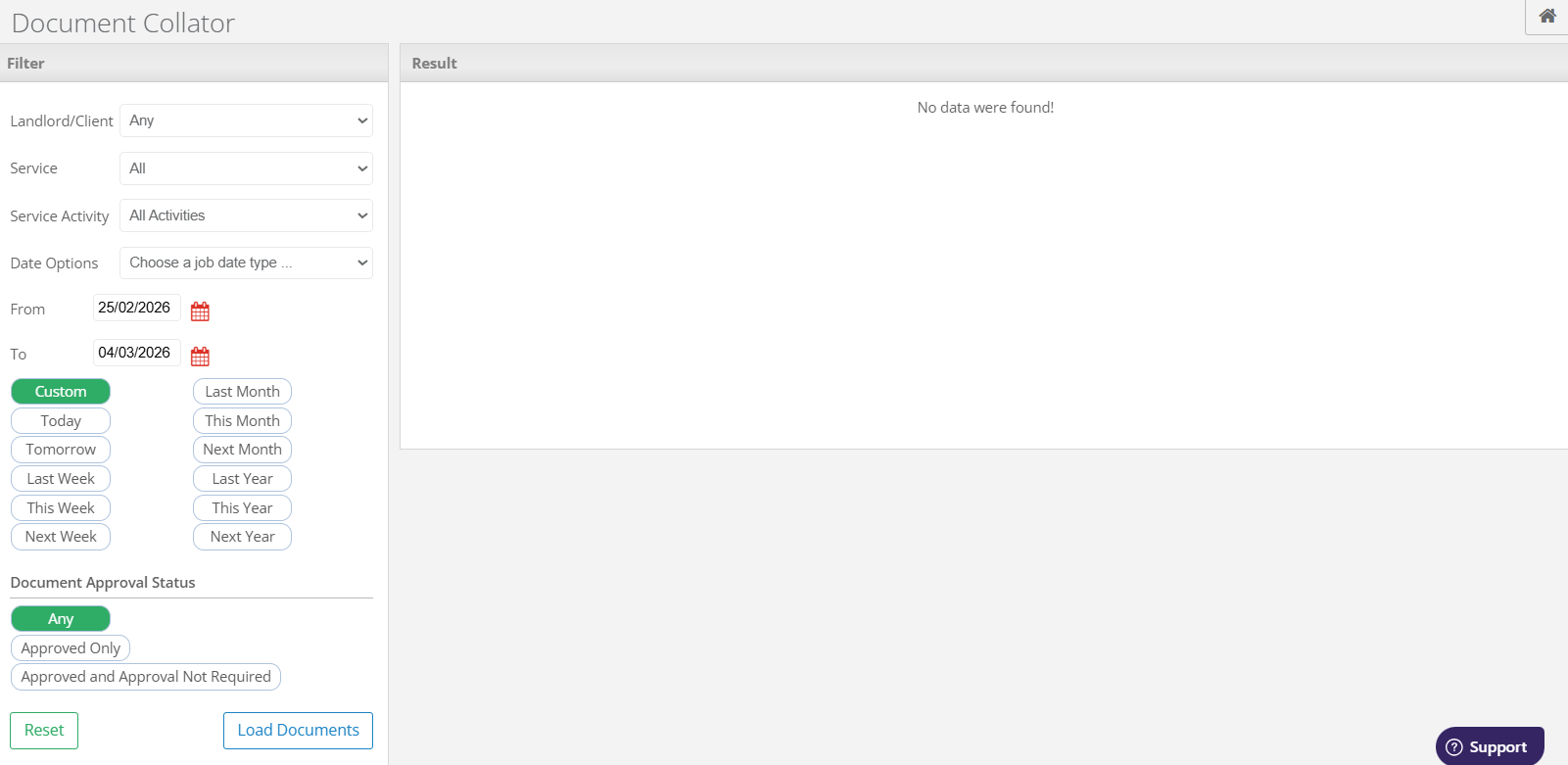
Filter the documents by the required Landlord/Client, Service Type, Service Activity and Date Range. Set the Date Options drop down to Attended.
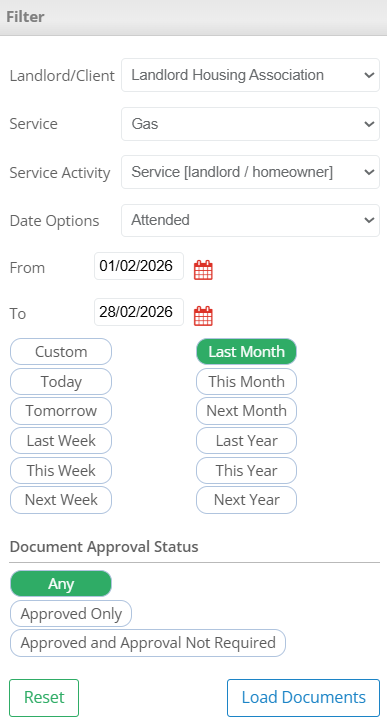
After the desired details have been entered, select Load Documents.
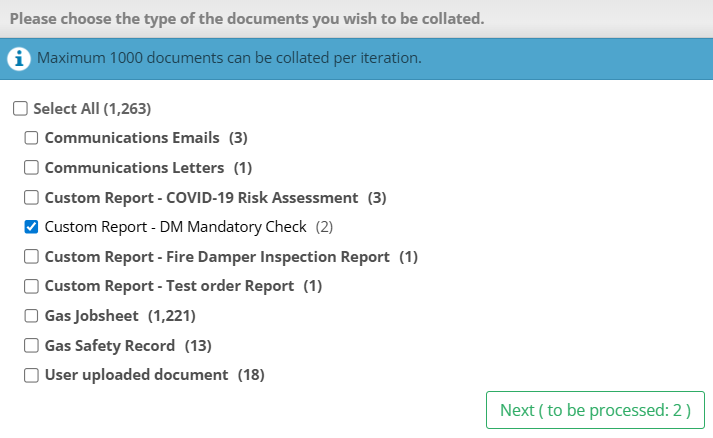
Choose the documents you would like to send and then Next.
Select the Postal option and then Prepare Postal Letters.
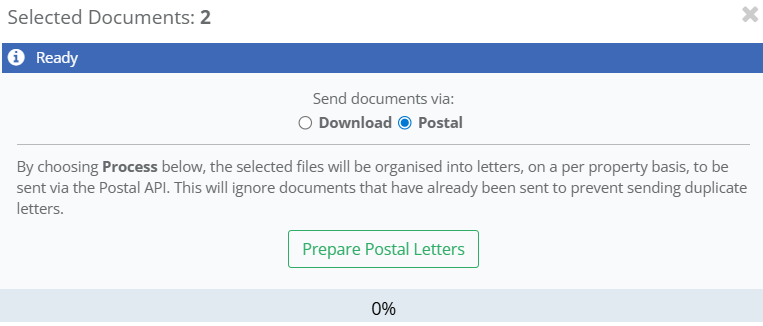
You will then be provided the quota information. This will detail how many pages will be sent and at what cost.
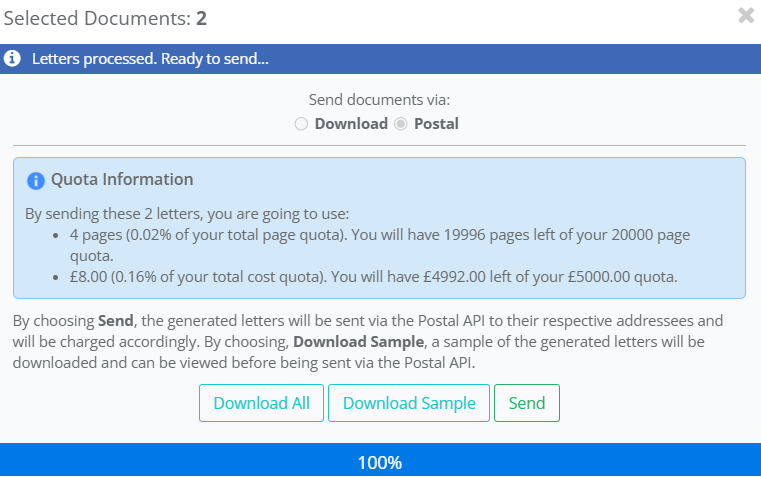
You can check what the letter will look like by selecting Download Sample. If you are happy to proceed, select Send. This will once again confirm the quota information before proceeding, select Yes to send the letters.
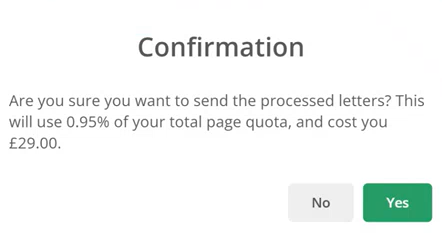
The system will then notify you if the letters were sent successfully.

Was this article helpful?
That’s Great!
Thank you for your feedback
Sorry! We couldn't be helpful
Thank you for your feedback
Feedback sent
We appreciate your effort and will try to fix the article