Emailing Documents
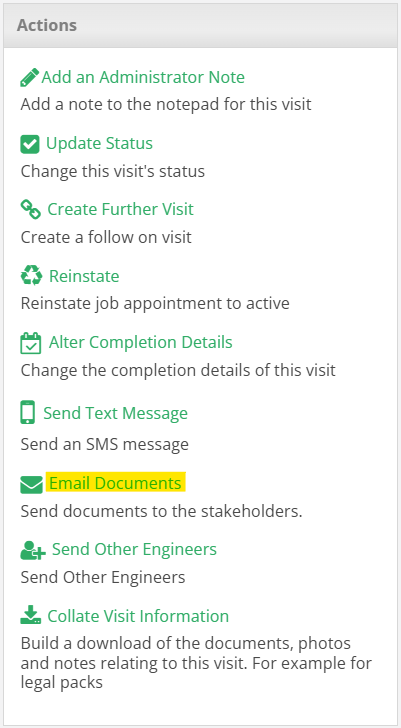
To email the required documents, first navigate to the desired job/visit. To the left of the visit in the Actions panel , select the Email Documents button.
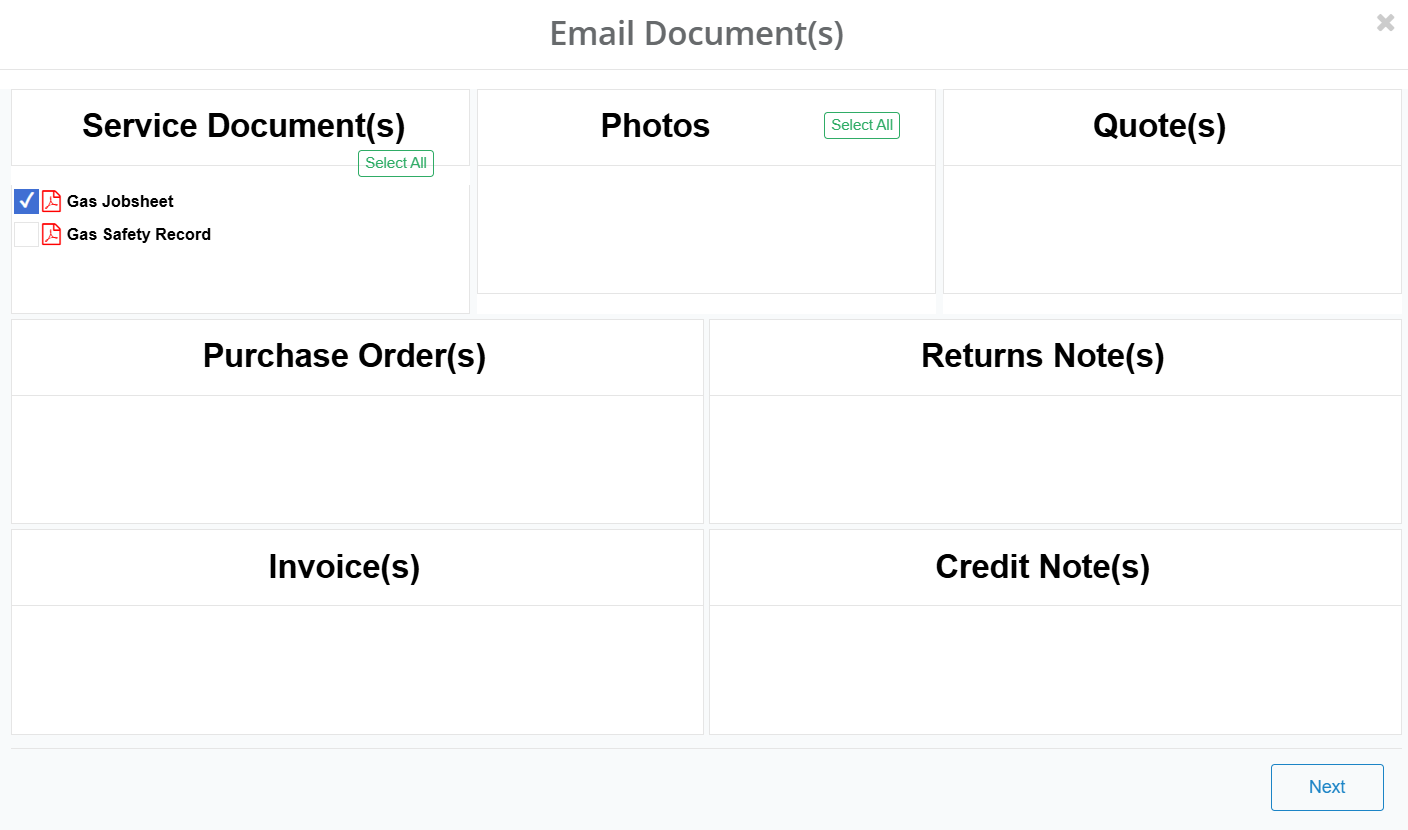
This will then showcase the different documents associated with the visit. You can either select the documents to send individually, or Select All for each category. Once the documents are selected, click Next.
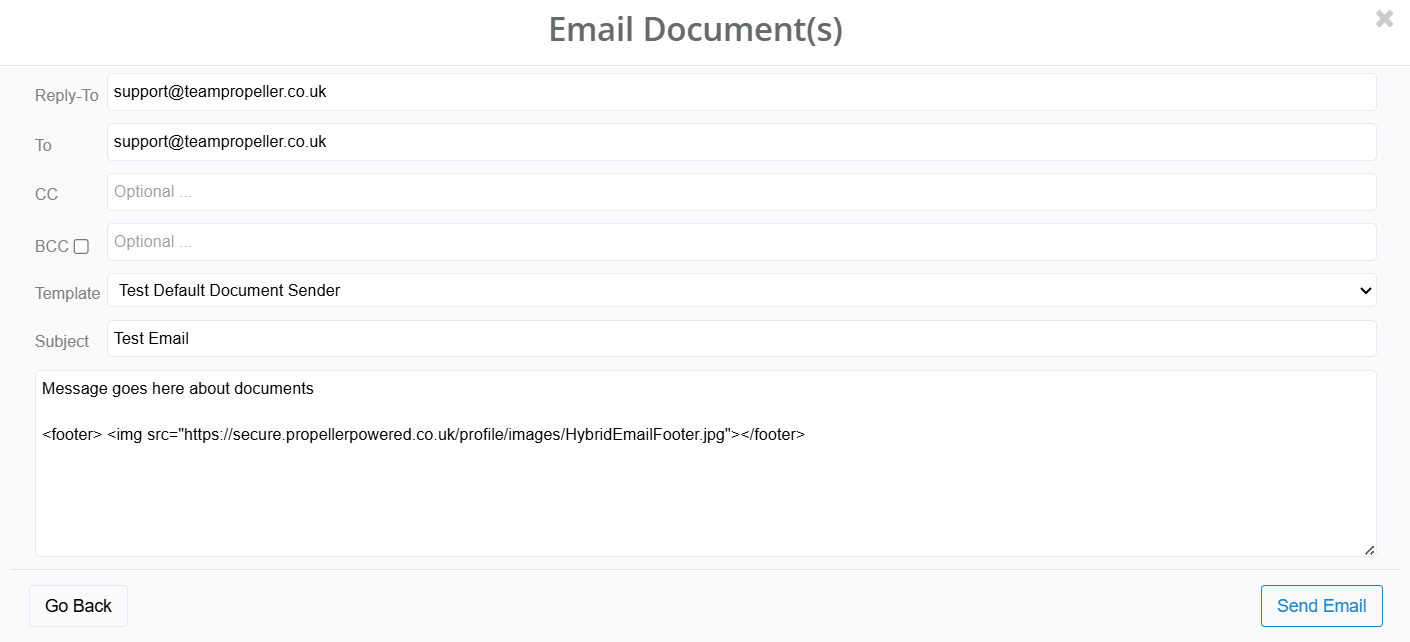
Now you will be able to enter the email details.
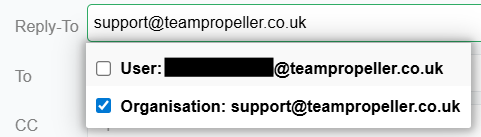
The Reply-To box allows you to specify who the email is sent from. When selecting this box, it will give you the option to either send the email from your account or the organisations email address. You can also enter this address manually.
This is similar to the To box which allows you to select either the customer at the property where the job/visit was completed, or the engineer who did the works. This can also be entered manually.
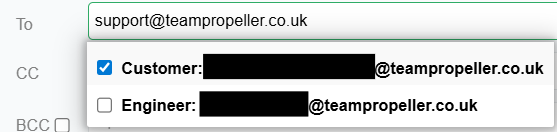
You can also specify if/who you would like to CC or BCC into the email.
Whilst you can manually write the email you would like to send, you can also use a pre-written template. Templates can be set up in the Template Manager which can be found here. Once this has been done, select a template from the drop down. This will then automatically fill the subject/email field.
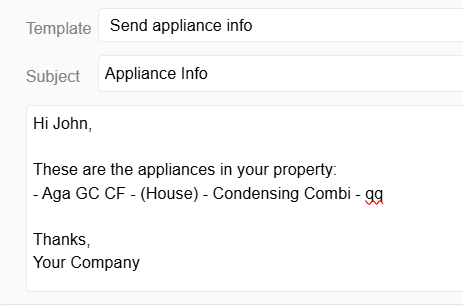
Once the email has the required information, select Send Email. The system will notify you if the email has been sent successfully. This will also be documented in the visit/property notes.

If the email fails to send or bounces from the recipients inbox, this will be reflected on the system/in the visit/property notes.
Was this article helpful?
That’s Great!
Thank you for your feedback
Sorry! We couldn't be helpful
Thank you for your feedback
Feedback sent
We appreciate your effort and will try to fix the article