In the September 2024 release we added the ability for Electrical QS users to create or upload their own signatures to replace the automatically generated electronic version.
_____________________________________________________________________________________________________________________________________
Setup
(Note: Requires the user to have permissions to the User Manager settings area)
Navigate to Settings > User Manager > Website Users.
At the top is a search function where you can search for the user you are looking for. You can search for either the Username or Full Name of the user.

Once you have found the user you are looking for select them in the table below by clicking on the username.
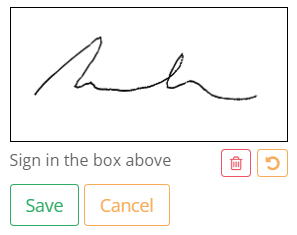
Scroll to the bottom of the user's profile to view the User Signature section. Here you can either either draw a new signature, or upload one for the user.

If you choose to draw a signature, you can draw this in the box provided .At any time you can either undo the last line drawn by selecting the Undo icon, or clear the box entirely with the Bin icon. Once the signature has been entered, select Save.
Alternatively, when uploading a signature the file is required to be in a JPG, JPEG, GIF or PNG format. You can upload this by selecting Choose an Image and then selecting Upload Signature.
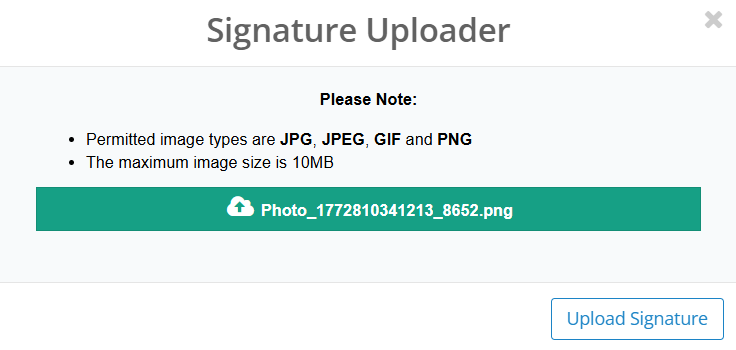 Once uploaded, the users signature will be used on Electrical Certification as part of the QS signoff process.
This can be disabled & removed at anytime by re-visiting the users details and clicking Remove Signature.
Was this article helpful?
That’s Great!
Thank you for your feedback
Sorry! We couldn't be helpful
Thank you for your feedback
Feedback sent
We appreciate your effort and will try to fix the article